

dsh-web-design
Manifest validWeb design for DeepSeek Harness: preview and edit HTML elements in the Sidebar
dsh-web-design
English | 中文
Background: DeepSeek Harness
DeepSeek Harness (dsh) is the open-source agent harness from DeepSeek AI, where nearly every capability is a plugin on Cordis. It is in developer preview and iterating fast, so expect compatibility-breaking changes (docs, 0.1.7-alpha.*); this plugin is a standalone third-party package that resolves @deepseek-ai/* from the running host.
The problem this plugin solves
There was no way to see a rendered HTML page and adjust it without leaving DSH; this plugin previews .html in the Sidebar, edits style, text, position and deletion, and writes the changes back into the source file.
Screenshots
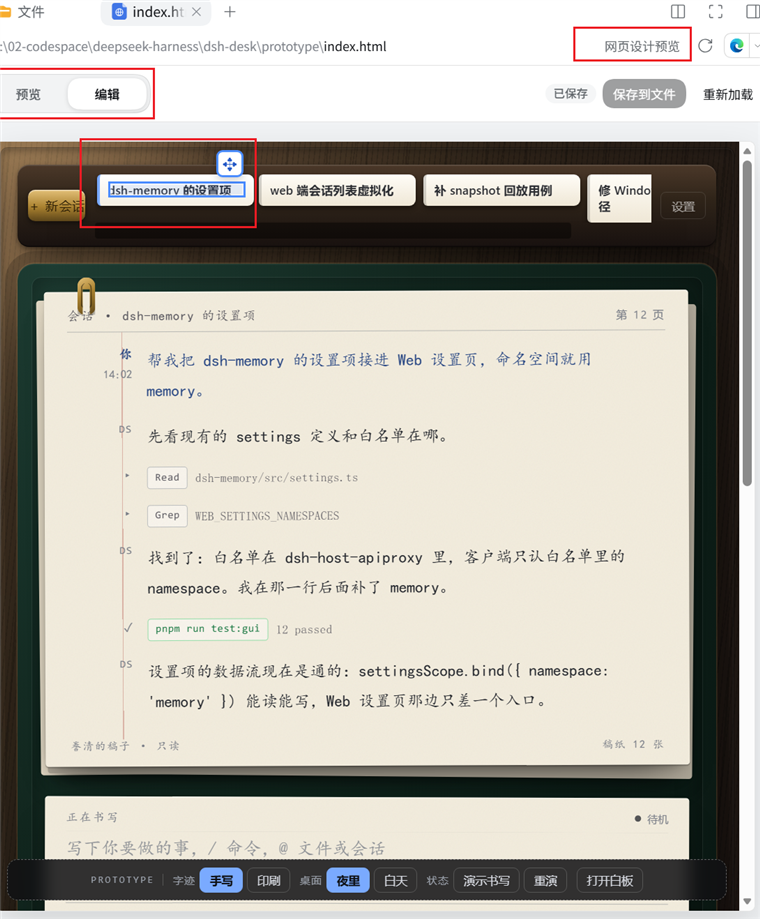 The Sidebar preview of an open
 .html file, with the 预览 / 编辑 switch and 保存到文件 in its toolbar.
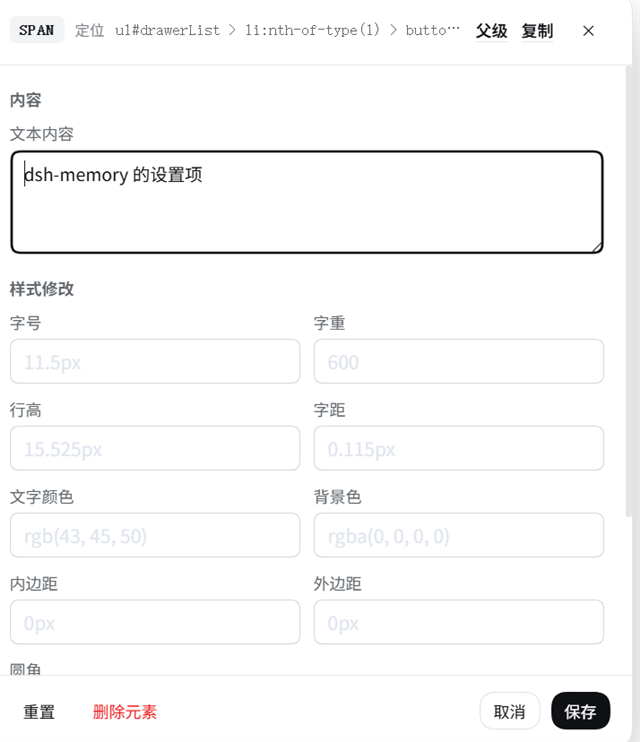 The element editor dialog: the selected element's selector, its text, and the style fields it can write back.
Install
npx @deepseek-ai/dsh plugin --profile web add @guowenzhang/dsh-web-design
From the npm registry: https://www.npmjs.com/package/@guowenzhang/dsh-web-design — restart the host afterwards; local checkouts, git sources and troubleshooting are in AGENTS.md.
Usage
Open an HTML file in the Sidebar
Opening an .html or .htm file in the Sidebar renders the page in place of the static source view, running the file's own inline CSS and scripts.
Switch between Preview and Edit
The toolbar's two-position switch changes between Preview and Edit without remounting the page. Preview leaves the page's buttons, links, and other click behavior active, so the page works normally. In Edit, a single click selects an element and a double-click opens its floating editor without replacing the page. The frame confirms each mode switch before accepting another click, so a rapid click cannot activate the page under the wrong mode.
Edit element
Select Edit, single-click the exact element to highlight it, then double-click to open the dialog. For transparent controls covering label text, clicking the text selects the text leaf while clicking the surrounding option selects its box. The dialog's Parent action moves to the containing element, including a group whose border is too thin to target directly. The dialog opens beside the preview when space allows, or along the bottom of a narrow viewport. A draft immediately shows Unsaved in the toolbar; Cancel discards it.
Move element
Drag the handle on the selected outline. Block elements move with CSS translate; inline text elements use relative left/top offsets, because browsers do not translate ordinary inline boxes. Save in the dialog keeps the new position; Cancel restores the original inline declarations.
Edit style
The dialog changes font size, weight, line height, letter spacing, color, background, padding, margin, and corner radius. A saved override applies to the frame immediately and persists with the review.
Text edit
An element with exactly one non-blank direct text node exposes that text in a field, even when it also has child elements. A parent container cannot replace the text of its descendants or guess between multiple direct text runs. The dialog header identifies the selected tag and CSS selector; compact Parent and Copy actions sit on the right. Copy puts the selected element's CSS selector on the clipboard so it can be shared for a precise change, including when the element has no editable direct text. Save in the dialog changes the frame and keeps the text replacement pending for the file write.
Delete element
Delete element removes the selected element and its descendants from the preview. The toolbar shows Unsaved until Save to file removes that exact element from the HTML source. Undo deletion restores all pending deletions before they reach the file. Document roots (html, head, and body) cannot be deleted.
Save to file
Save to file writes the style, text, and deletion edits into the HTML file itself. Until then those edits live in a review file beside the artifact and re-apply on load; the preview never writes the HTML on its own.
- Applied — the selector reached the file.
- Skipped — the selector could not be located uniquely in the source (for example the element is generated by a script, an id is duplicated, or a sibling path becomes ambiguous). The preview reports these instead of claiming success.
Text replacement is limited to elements with one non-blank direct text node; child markup is preserved, and multiple direct text runs are refused. A successful file write clears the Unsaved status for the committed edit.
Notes and caveats
- Relative page assets are not bundled into this preview. HTML with inline CSS and scripts renders directly; links to sibling CSS, JavaScript, images, or fonts need a separate asset-loading path before they can appear in the isolated frame.
- Save to file cannot reach elements that only exist after page scripts run. The selector is resolved against the source tree, so an element the page's JavaScript created is reported as skipped rather than written somewhere else.
- A script can reorder otherwise identical siblings. A selector path alone cannot prove which authored sibling a moved DOM node came from when the sibling count remains the same. Use stable ids for elements whose edits must be written back; otherwise inspect the file after saving.
- Edits are applied as source-span rewrites, not a re-serialized DOM. The file keeps its comments, formatting, and authored structure, and only the spans the edits locate are replaced.
- Every other byte of the file stays untouched. A style or text edit replaces just the located attribute or text node, and a deletion removes that element's complete source span, including its children.
License
The plugin itself is Apache-2.0 — see LICENSE and NOTICE. It contains no DeepSeek Harness source: the harness packages are peer dependencies resolved from the running host.
Its runtime dependencies keep their own licenses: parse5 is MIT, and @deepseek-ai/dsh-atomic-write is MIT.
Further reading
- AGENTS.md — install variants, build, composition and deployment semantics, release, technical decisions, tests, and troubleshooting.
- dsh-ui-beautify — a sibling plugin that picks the harness body and code fonts.
- DeepSeek Harness documentation.
Comments
Loading…
Similar plugins
by xbyzzZ
Clickable HTML prototype canvas for DeepSeek Harness.
★ 0
MIT
JavaScript
Aug 21, 2026
dsh plugin --profile web add dsh-designby leonardoxr
Secure bounded coding tools for DeepSeek Harness
★ 0
MIT
TypeScript
Aug 24, 2026
dsh plugin --profile web add dsh-coding-toolsby u9521
Custom Web Search plugin for DeepSeek Harness (DSH), replacing web-search-deepseek with multi-engine sequential fallback.
★ 0
MIT
TypeScript
Sep 27, 2026
dsh plugin --profile web add @local/dsh-cust-searchby 131CDA1
用于DeepSeek Harness的网页读取插件
★ 8
↓ 115/wk
MIT
JavaScript
Aug 20, 2026
dsh plugin --profile web add dsh-scrape-webpageby CanglongCl
DeepSeek Harness Web GUI 的网页预览与元素批注插件,让 AI 根据可视化反馈直接修改前端源码。
★ 24
↓ 65/wk
HTML
Sep 5, 2026
dsh plugin --profile web add @canglongcl/dsh-web-reviewby Toukaiteio
A DeepSeek Harness plugin that allows you to change the reasoning effort of custom models in WebUI.
★ 4
MIT
TypeScript
Aug 13, 2026
dsh plugin --profile web add dsh-effort-tweak