

dsh-im
Manifest valid★ 2.7kConnect IM bots to DeepSeek Harness via QR code or credentials (supporting Feishu, WeChat, DingTalk, WeCom, QQ, Slack, Telegram, Discord, and WhatsApp).







[!NOTE] DSH-IM has been officially recognized by DeepSeek Harness, and received a CNY 1,000 Token quota reward. Thanks to the official team for acknowledging and supporting this project!
Introduction
Connect IM bots to DeepSeek Harness by scanning a QR code, using an App Manifest, or entering existing bot credentials, and let the local Harness connect outward to a public AI Office. One plugin and one settings entry manage the built-in IM channels and the AI Office Connector. Each IM channel supports connecting multiple bots, and each bot's connection status, workspace, model, and session binding are independent of one another; iMessage, which uses a local Messages.app identity, is the exception — see the iMessage channel docs for details.
Connect IM bots to DeepSeek Harness by scanning a QR code, using an App Manifest, or entering existing bot credentials, and let the local Harness connect outward to a public AI Office. One plugin and one settings entry manage the built-in IM channels and the AI Office Connector.
Interface
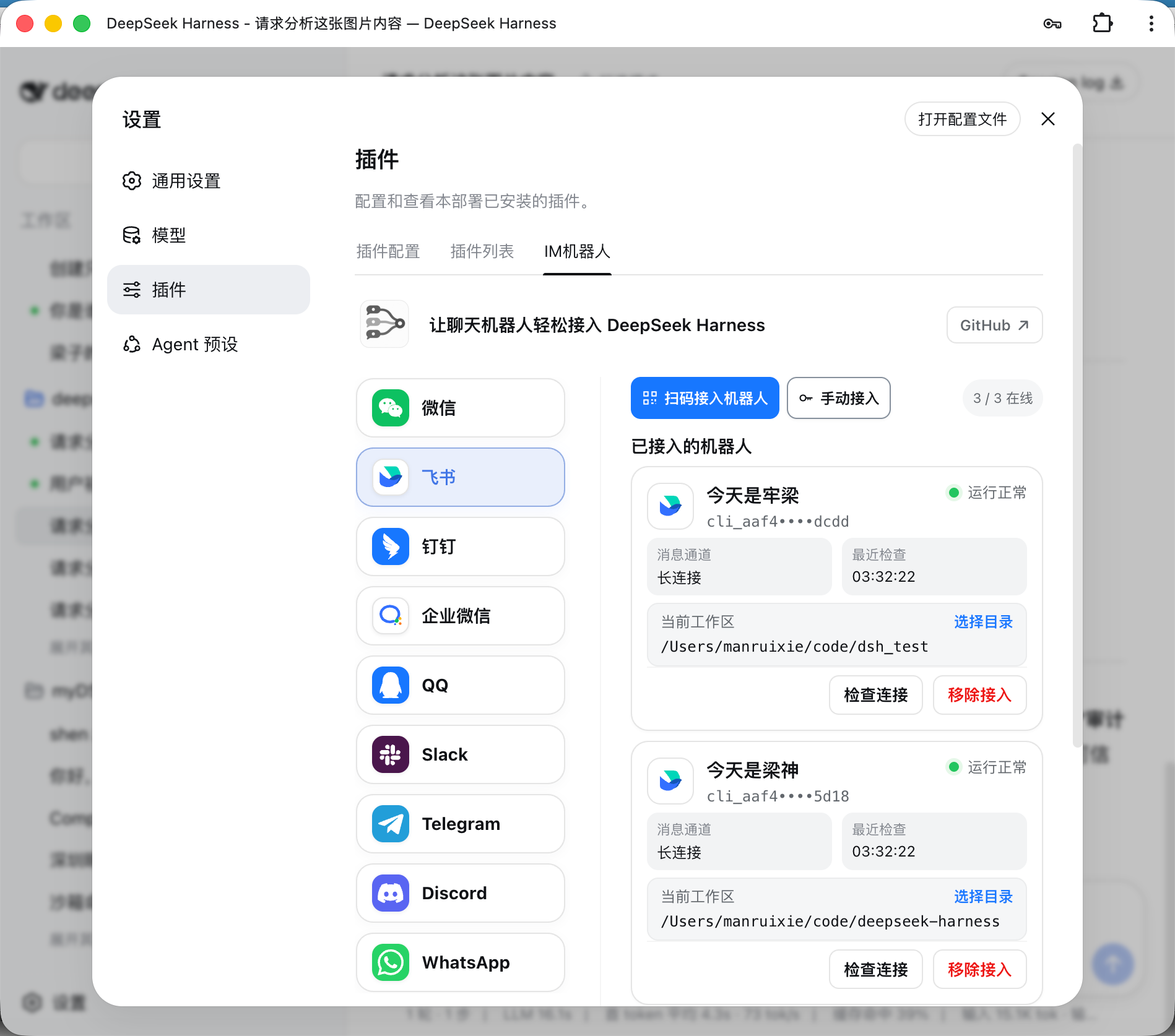


Built-in Channels
| Channel | Connection Method | Messages & Replies |
|---|---|---|
| Feishu | Scan QR to create a bot, or manually bind with App ID + App Secret | Long connection receives messages; displays thinking, tool progress, and replies via Feishu streaming cards |
| Bind bot via WeChat QR scan | Tencent iLink long polling for sending/receiving; shows "typing" while awaiting Harness response; final reply is split into 1,800-character segments | |
| DingTalk | Scan QR to create a bot, or manually bind with Client ID + Client Secret | DingTalk Stream long connection; displays replies via AI Card streaming |
| WeCom | Create an intelligent bot by scanning QR in the WeCom App, or manually bind with Bot ID + Secret | Official WebSocket long connection; natively displays "thinking", tool execution progress, and streaming replies |
| WeCom App | Create a custom app in the WeCom admin console; fill in Enterprise ID, AgentId, Secret, Token, EncodingAESKey (optional proxy address) | HTTP callback receiving; private chats support streaming replies (falls back to segmented text if the WeChat client doesn't support it); supports image input and result file delivery; members who follow the enterprise's WeChat plugin can use it directly in WeChat |
| Create a bot by scanning QR in Mobile QQ, or manually bind with AppID + AppSecret | WebSocket long connection; private chats show "typing" and reply with a single Markdown message; in group chats, responds only with the final answer after being @-mentioned | |
| Slack | Create an app using a preset App Manifest, then fill in Bot Token (xoxb-) and App Token (xapp-) | Socket Mode long connection; private chats reply directly, channels respond when @-mentioned; prefers the official streaming messages API |
| Telegram | Use a Bot Token generated by @BotFather | Bot API long polling; private chats respond directly by default, group chats respond when mentioned or replied to; can also independently enable a private chat whitelist security mode for each bot; private chats stream a Rich Message Draft preview and persist the final rich message, group chats and Topics complete in-place placeholder messages, falling back to plain text when the platform doesn't support it |
| Discord | Use a Bot Token generated in the Developer Portal | Gateway v10 long connection; DMs reply directly; text/announcement channels create a native Thread on first @-mention, subsequent messages in the thread don't need repeated @-mentions, and replies stream via message editing |
| Scan QR in WhatsApp on your phone to link a device | WhatsApp Web long connection; by default only responds to the account's self-chat, can switch to specified contacts or open response mode; displays read and "typing", shows tool progress and step-by-step generated replies by editing the same message every second, long replies are auto-split, and on edit failure falls back to a full text reply | |
| iMessage | Log into iMessage in macOS Messages.app, and grant local permissions per the channel docs | Uses macOS native Messages.app for text private chats; does not rely on BlueBubbles; each macOS user account uses one local iMessage identity |
For callback base URL, proxy address, and enterprise trusted IP configuration for WeCom self-built apps, see the WeCom Self-built App Integration Guide.
Other IM platforms can follow the same adapter structure.
Feishu group chats receive by default messages in which other bots explicitly @ the current bot; no extra switch is required. Messages without an @, messages that only @ other members or everyone, messages sent by the bot itself, and direct bot conversations are still ignored, even when the group chat response mode is set to "All". Messages remain subject to the group chat whitelist and command permissions. A Feishu app requires the tenant permission im:message.group_at_msg.include_bot:readonly ("Receive messages in which other bots and users @ the current bot in a group"); apps created via QR scan apply for it by default, while existing or manually bound apps can click "Complete Permissions" or run /repair in a direct conversation; the change takes effect after scanning the code and completing the release approval required by Feishu. See Feishu Message Receiving Permissions for details.
All built-in channels that support image input can send JPEG, PNG, and WebP images, as well as GIFs sent as image files, along with an optional text description to the Harness; a single image is limited to 5 MB, and the total image size in a single message is limited to 20 MB. The first version of iMessage supports only text direct conversations and is not included in the image capability. Feishu requires the tenant permission im:message:readonly to download images or files in user messages; the confirmation page displays it as "Read direct and group messages"; Feishu currently does not offer a narrower, image-only permission for this download API. Apps created via QR scan apply for it by default; existing or manually bound apps can have the bot run /repair in a direct conversation, or click "Complete Permissions" on the "IM Bot" settings page to incrementally complete this permission, the im:resource required to upload bot images or files, the application:app_slash_command:read / write required for the native command panel, and card callbacks via a QR scan.
Deferred Delivery After Timeout
All connected IM channels share timeout task tracking: upon "model reply timed out," the plugin keeps checking the original task and delivers the final text to the original chat or thread; checking resumes after restart or reconnect. /stop only stops the current chat's turn; after switching sessions, stale results aren't resent. No new settings needed; the normal reply flow stays unchanged.
Deferred delivery is still subject to channel sending permissions and quotas. A clearly failed send is retried at most three times; when the send result is uncertain, the record is retained and automatic retries stop, to avoid duplicate messages. This mechanism restores text results and terminal-state notifications; it does not replay questions, approvals, or file tool calls. See Deferred Delivery Notes for details.
Result Files and Image Return
All built-in channels that support file round-tripping can return Harness-readable files as native channel attachments. Existing and newly generated task files can be sent directly. Enabled by default for all connected bots, no toggles or allowlists; existing text, image, streaming, command and session behavior is unchanged. iMessage does not support file/attachment round-tripping in the first release.
After the model calls the file tool, the plugin hands the specified files to the channel's native API. Images prefer native image messages; if unsupported or rejected, it falls back to a file attachment and won't resend on uncertain results. No extra rules on origin, time, workspace, extension, content, count, size, or validity — files just need to exist and be readable. The platform may still reject based on its own permissions or quotas; the plugin reports the platform's result.
| Channel | Platform Requirements |
|---|---|
| The current binding protocol and session must support native file messages; the actual sendable scope is determined by the response returned from the WeChat interface. | |
| Feishu | The Feishu file upload API requires the file to be non-empty and no larger than the platform's 30 MB limit; the app must have the tenant permission im:resource ("Read and upload image or file resources"). The built-in QR-scan flow applies for this permission by default when creating a new app; existing or manually bound apps can incrementally complete the permission and finish the approval required by Feishu via "Complete Permissions" or by running /repair in a direct conversation. The Feishu developer console currently does not offer a separate im:resource:upload permission. |
| DingTalk | The app must have qyapi_base enabled, and the bot must have file-message capability; the actual supported formats and sizes are determined by the current OAPI and bot capability response. |
| WeCom (Enterprise WeChat) | The app must have material-upload and file-message capability; the actual sendable scope is determined by the response returned from the WeCom interface. |
| The bot must have file-message capability and is subject to QQ's daily file-upload quota; when the quota is exhausted, a clear message will prompt the user to retry later. | |
| Slack | The Bot Token must have files:read, files:write, and reactions:write; the actual file-size limit is determined by the current Workspace policy. After adding or changing Scopes on an existing App, the App must be re-authorized/reinstalled and the bot reconnected. |
| Telegram | The bot must be able to send documents in the current chat; the actual sendable scope is determined by the Bot API response. |
| Discord | Message Content Intent must be enabled in the Developer Portal's Bot settings; the bot must have the Send Messages, Create Public Threads, Send Messages in Threads, and Read Message History permissions; sending result files additionally requires Attach Files. The actual attachment quota is determined by the current account and server capabilities. |
| The currently bound session must support Document Message; the actual sendable scope is determined by the response returned from WhatsApp/Baileys. |
AI Office Connector
See AI Office Connector documentation
Installation
Recommended: install the stable release from npm:
dsh plugin --profile web add -w @xmanrui/dsh-im
Restart dsh web, refresh the browser, then open Settings → IM Bots. IM Bots uses order: 21, keeping it just after Agent Presets in the top-level settings menu; the plugin no longer keeps the legacy entry on the settings page. Upgrading from an older version does not modify existing bots, credentials, workspaces, Agent Presets, or session bindings.
Local dsh web and DSH Desktop reuse the current Host's internal services by default: older Harness versions use apiProxy, while newer Harness versions automatically use the Typert Gateway, Session Controller, and Workspace Controller, with no Harness address configuration and no detour through a local HTTP port. Desktop compatibility mode, extension window, and enhanced mode all do not require enabling "allow opening in browser" or LAN access. An explicitly set harnessBaseUrl in channel configuration is retained only for older remote HTTP/WebSocket Harness; internal call failures do not automatically fall back to another Host.
To try the latest code that has not yet been published to npm, use the GitHub-based installer instead:
npx -y github:xmanrui/dsh-im install
Installation from the GitHub source pulls and builds Git dependencies directly; pnpm 10 and later may require allowing that dependency to run build scripts in the profile's pnpm-workspace.yaml. Regular users are advised to prefer the stable npm release.
After installation, complete the QR scan or credential setup on the corresponding channel page per the built-in guide. All secrets and tokens are only sent to the local Harness Host and stored in the protected credential store; status APIs and bot lists do not return these credentials.
If your machine must reach Lark through a forward proxy, set HTTPS_PROXY to an HTTP proxy URL including the protocol (e.g., http://proxy:8080; lowercase https_proxy is also supported, with HTTP_PROXY used as a fallback) before starting dsh web, then restart the Host. Lark registration and credential verification reuse the SDK's proxy-aware HTTP client, and the message long connection explicitly establishes the WebSocket through this proxy; the long connection does not currently read ALL_PROXY or NO_PROXY.
If your machine cannot reach the Telegram Bot API directly, use Node.js 22.21 or later, and enable Node's environment-variable proxy support before starting dsh web:
NODE_USE_ENV_PROXY=1 \
HTTPS_PROXY=http://proxy:8080 \
HTTP_PROXY=http://proxy:8080 \
NO_PROXY=localhost,127.0.0.1 \
dsh web
Fill in the proxy address according to your local network environment; the Host must be restarted after changing the proxy. When binding a Telegram Bot Token, if the page reports that the Bot API is unreachable, first check the proxy address, the Node.js version, and the NO_PROXY configuration.
| Default behavior | Description |
|---|---|
| Bot alias | Click the pencil next to a bot name to set an alias; it is displayed immediately after saving, without a restart or reconnection. The original name is always preserved and can be restored via "Restore original name" or by clearing the alias and saving; only the display name on the local settings page is affected. |
| Bot workspace | Each bot stores its workspace independently. A new bot defaults to the Host's current working directory at that time; it can later be changed on the bot card. |
| Model | Every bot in every IM channel can independently select a model below its workspace; when none is selected, it follows the Host default. Switching only affects sessions created afterwards; in the current chat, send /new first, then a regular message, to use the new selection. |
| Thinking intensity | Explicitly select a thinking intensity supported by the model below it, or follow the model default. Tiers, descriptions, and defaults come from DSH; switching models resets to the new model's default intensity. Saved independently per bot and only affects sessions created afterwards. |
| Agent Preset | Each bot can select an Agent Preset on its settings card. When none is selected, it follows the Host's agent-presets.default; a channel-level config.agentPreset only serves as the default for bots newly connected to that channel. Switching does not modify or clear existing sessions; if the current chat already has a session, send /new first, then a regular message, before the new selection is used to create the session. |
| Context enhancement | Open settings from the bot card to separately decide whether to enhance group chats and private chats; both toggles are off by default and are not automatically enabled when old bots upgrade. |
| Session channel tag | The local Host automatically marks IM channel sources for AI Office sessions. The Web session list and search results render prefixes like "WeChat ·" as channel logos; DSH's original automatic title generation and updates are preserved. Existing sessions are backfilled on next load. |
The channel prefix is appended after DSH generates the title, fully preserving the original title and its automatic/manual origin, without locking automatic titles or making extra model calls. Regeneration, refresh, or restart do not stack prefixes; genuine manual naming still follows DSH's locking rules. Driven by the current Host's session events; when explicitly connecting to a remote harnessBaseUrl, the plugin must be installed on the target Host.
Logos render via dsh-im's browser adapter, no DSH changes. The adapter keeps the original text node and click/menu/drag actions; copy, screen readers, and other UI retain the text channel name. On DSH structure mismatch, unsupported browser, or icon load failure, the text prefix stays; after uninstall, original display returns.
Proactive Delivery
IM channels that support proactive delivery can proactively send text messages using a stable botId + targetId. The bot settings page supports picking a target from existing chats or entering it manually, testing the current route before saving, and copying call parameters; HTTP POST, plugins on the same Host, and Connection RPC all share the same target configuration and delivery core.
For a saved private-chat target, you can enable "bidirectional session sync", which is off by default. Once enabled, user text and final assistant text sent in that private chat's current session via DSH Web/CLI are synced back to the private chat; existing questions and /steer from the IM side are not duplicated. The toggle automatically follows the current session after /session, /new, and workspace switches. The initial release only supports private-chat text on the current Host; groups, Topics, Threads, and an explicitly remote harnessBaseUrl are not supported.
For setup steps, per-channel fields, complete call examples, admin endpoints, error codes, and troubleshooting, see Proactive Delivery Guide (English).
Context Enhancement
View context enhancement documentation
Access Modes
View access mode documentation
Updates Check & Install
View update checking and installation documentation
Bot Commands
| 命令 | 作用 |
|---|---|
/help | 显示机器人支持的命令和用法。 |
/menu、/m | 飞书、钉钉和企业微信打开交互菜单。钉钉的会话、工作区、预设和模型按两列排列,选择后立即生效,并在原卡片更新结果。企微下拉选择后点击应用;菜单仅通过 /m 或 /menu 手动打开,进入单聊时不自动展示,按钮执行后仅反馈结果,不自动补发菜单。菜单还提供新会话、停止、压缩、状态与帮助等按钮。 |
QQ /menu、/m | 打开按钮与数字菜单:会话选择、工作区、模式/预设、模型、新会话、会话列表、停止、压缩、补充指令、归档显示切换、状态和帮助。列表支持分页;按钮不可用时回复数字选择。菜单按聊天和操作者隔离,15 分钟或重启后失效;普通消息退出数字选择,审批、提问和批量输入保留原有优先级。 |
/new | 解除当前聊天的会话绑定,让下一条普通消息开启全新 Harness 会话。 |
/status | 检查当前机器人与 DeepSeek Harness 的连接状态。 |
/version | 查看当前运行的 dsh-im 插件版本。 |
/models | 按序号列出当前配置的全部可用模型。 |
/model | 查看当前聊天绑定会话正在使用的模型和推理等级。 |
/model <序号或 Provider/模型ID> [推理等级ID] | 切换当前会话模型,并可同时指定目标模型支持的推理等级。 |
/reasoninglist、/reasonings | 等价命令;列出当前模型支持的推理等级。 |
/reasoning | 查看当前会话的模型和推理等级。 |
/reasoning <序号或等级ID> | 切换当前模型的推理等级。 |
/reasoning --default | 恢复当前模型的默认推理等级。 |
/presetlist、/presets | 两个等价命令;按序号列出 Host 当前可用的 Agent Preset,并标记 Host 默认项和当前机器人的选择。 |
/preset | 查看当前机器人的新会话 Agent Preset 设置。 |
/preset <序号或 Preset ID> | 设置当前机器人的 Agent Preset;纯数字 ID 使用 /preset id:<ID>。 |
/preset --default | 清除当前机器人的显式选择,让后续新 Session 跟随 Host 默认。 |
/stop | 立即停止当前聊天正在运行的任务,并保留尚未开始的排队消息。 |
/steer <补充指令> | 把补充指令立即加入当前聊天正在运行的任务。 |
/batch | 在私聊中开启批量输入,最多收集 10 条纯文字消息。 |
/send | 将已收集的消息按原顺序作为一次输入提交。 |
/cancel | 取消批量输入并丢弃已收集的消息。 |
/repair | 在飞书私聊中增量修复卡片回调,并补全媒体、群聊机器人 @ 消息与原生 Slash Command 面板所需的权限。 |
/compact | 立即压缩当前聊天绑定会话的较早上下文。 |
/workspace <工作区序号或绝对路径>、/ws <工作区序号或绝对路径> | 按 /workspacelist 序号或绝对路径切换当前机器人的 Harness 工作区。 |
/workspacelist、/workspaces、/wsl | 列出当前 Harness Host 上仍然存在的工作区绝对路径。 |
/sessionlist [工作区序号或绝对路径]、/sessions [...] | 两个等价命令;列出指定工作区登记的所有会话 ID 和标题,省略参数时使用当前工作区。 |
/sessionlist --limit N、/sessions --limit N | 列出当前工作区现有顺序中的前 N 个会话;N 必须是正整数。 |
/session <Session ID> | 将当前聊天绑定到指定的已有 Harness 会话。 |
/history [数量] | 在私聊中查看当前绑定会话的最近历史消息,默认 3 条,最多 5 条。 |
| 交互式提问 | 回复选项序号、选项文字或自定义文字;多选时用逗号分隔。 |
| 远程审批 | 回复 批准 / 拒绝 / 同意 / 不同意 / yes / no。 |
命令说明
钉钉菜单使用插件内置的共享卡片模板,无需逐个机器人创建或配置模板。卡片打开后可操作 30 分钟;超时或 Host 重启后重新发送 /m。模板源文件保存在 assets/dingtalk-menu-template.json,供维护者导入卡片平台更新。
其它功能
- 图片识别:支持图片输入的内置渠道都可以把 JPEG、PNG、WebP,以及以图片文件方式发送的 GIF 交给 Harness;图片可以附带文字说明。单张图片上限为 5 MB,单条消息中的图片总大小上限为 20 MB。iMessage 首版仅支持文本私聊。
- 在机器人卡片切换工作区:设置页中的每张机器人卡片都会显示当前 Harness 工作区。可以直接填写已有目录的绝对路径,也可以打开目录选择器。切换只清除该机器人的旧聊天映射,不会删除、清空或归档旧 Session;已经开始的回复可以继续完成,后续消息使用新工作区。
- 在机器人卡片选择模型与思考强度:每个 IM 渠道的每张机器人卡片都在工作区下方提供模型与思考强度入口,采用 DSH 风格的分组列表、档位说明和选中标记。先选择 Host 当前可用模型,再选择其支持的强度,或跟随模型默认;未选模型时整体跟随 Host 默认。设置按机器人独立保存,只用于之后新建的 Session;已有 Session 和正在生成的回复不受影响。
- 在机器人卡片选择 Agent Preset:设置页中的每张机器人卡片都可以选择 Host 已有的 Agent Preset,或跟随 Host 默认。切换只作用于该机器人,并且只影响之后新建的会话;已有会话和正在生成的回复不受影响。
- 检查连接并发送测试消息:机器人在线时,点击卡片上的「检查连接」会检查平台连接,并向该机器人最近记录的私聊发送一条“DeepSeek Harness 连接测试成功”消息;WhatsApp 会发送到账号自聊。测试消息不会创建 Harness Session,也不会调用模型。机器人必须至少收到过一条私聊才能记住测试目标,否则页面会提示尚无可用的测试会话。
- 重试连接和移除接入:机器人离线时,卡片上的操作会变为「重试连接」;不再使用时可以点击「移除接入」。这些操作都只作用于所选机器人,不影响其他机器人或渠道。
- 多机器人独立管理:同一渠道可以接入多个机器人。每个机器人分别保存凭据、连接状态、工作区、模型、Agent Preset 和聊天会话映射,卡片上的工作区、模型、Preset、连接检查、重试和移除操作互不影响。
- 流式回复和进度提示:插件会按各平台能力显示正在思考、工具执行和逐步生成的回答;不支持原生流式接口的平台会通过编辑消息、卡片更新或最终消息完成回复。
微信扫码、连接或移除失败时,可展开页面中的「诊断详情」并点击「复制诊断信息」。反馈时附上操作步骤、Desktop/Web 运行方式和实际 DSH 版本;使用 WX-CONN-… 参考号查找同一次故障的 [dsh-weixin] Host 日志。诊断会区分网络、凭据、文件、Harness 和微信业务拒绝,不包含登录令牌或二维码内容。账号已移除但本机清理未完成时,页面会保留清理警告;若未取得 Host 参考号,请同时检查 DSH 管理连接和启动日志。
微信启动配置校验失败时,诊断还会提供 file、field、issue,定位 config.json 或 workspaces.json 中第一个未通过校验的位置。字段中的序号从 0 开始,按文件条目顺序计数,例如 workspaces[0].value 表示第一条工作区配置的值,不包含真实账号标识。默认目录为 DSH_HOME/integrations/dsh-weixin(未设置 DSH_HOME 时为 ~/.dsh/integrations/dsh-weixin),自定义路径以插件配置为准。修复后需要重启 DSH;页面「重新读取」仅查询状态,不会重新加载配置文件。
设计
- Harness 一级设置菜单中只注册一个「IM机器人」设置页,其中包含内置 IM 渠道和一个 AI Office Connector;
- 内置渠道及 Office Connector 的 Host、客户端与运行时源码都在本仓库维护,不依赖外部独立插件;
- 设置页跟随 DeepSeek Harness 的语言选择,在中文和 English 之间即时切换;机器人发出的聊天消息、命令帮助和 Telegram 命令菜单同样跟随该界面语言并即时切换,中文始终为兜底,未收录的文案原样输出;
- 左侧使用 Logo 切换微信、飞书、钉钉、企业微信、企业微信应用、QQ、Slack、Telegram、Discord、WhatsApp、iMessage 和 AI Office,不使用启用/停用开关;
- 各 IM 渠道保持独立的 RPC、凭据、连接监督和会话映射;Office Connector 另行维护设备凭据、Job 租约、审批等待与并发上限;
- 浏览器只获得二维码、Manifest、脱敏状态,以及用户为当前 Telegram 或 WhatsApp 机器人主动保存的访问模式和白名单标识;手动输入的 Secret 或 Token 仅单向提交给本机 Host,任何 RPC 响应都不会返回 App Secret、
bot_token、钉钉client_secret、企业微信 Secret、QQapp_secret、Slack Bot/App Token、Telegram/Discord Bot Token、WhatsApp 关联设备密钥、AI Office Device Token,或从平台消息中观察到的其他原始用户标识。
本地开发
Web profile 已验证兼容原版 DSH 0.1.2-alpha.4、0.1.2-alpha.5、0.1.2-rc.1、0.1.3-alpha.1 和 0.1.5-alpha.1。这些版本共用 dsh-im 的管理 RPC 适配,通过 Connection 的公开 /api Fetch 注册接口工作,无需修改或重新编译 DSH。升级插件后重启 Host 并刷新设置页,使 Host 和客户端使用同一版插件。
npm install
npm run check
node bin/dsh-im.mjs install --source .
npm run check 运行单元测试、构建 Host/Client 产物,并验证发布包不包含凭据或独立渠道设置页注册。
IM 管理接口默认沿用 Harness 的浏览器认证和 Host/Origin 信任检查。只要 Harness 已允许并认证当前局域网访问,便可直接查看和配置 IM 机器人,无需额外修改 dsh-im 配置。
通过自定义域名访问时,如果 IM 设置页出现 transport failure for /api/dsh-im/...: HTTP 403,请在原 DSH 启动命令中添加浏览器访问的域名,并重启 DSH:
dsh web --trusted-host dsh.example.com
将 dsh.example.com 替换为实际访问域名,不带 http://、https:// 或路径。只写域名允许该域名的任意端口;如需限制到指定访问端口,使用 --trusted-host dsh.example.com:8443。多个域名可重复传入 --trusted-host。这个参数属于 DSH;dsh-im 的 rpcAuthority: trusted-host 本身不会把域名加入 DSH 信任列表。本机通过 localhost 或 127.0.0.1 访问通常不需要额外配置。
使用反向代理时,代理传给 DSH 的 Host 应保留浏览器访问的域名及端口;浏览器携带的 Origin 解析出的 host(含非默认端口)必须与该 Host 一致,仅将两者分别加入信任列表仍会返回 403。--trusted-host 只配置访问校验,浏览器仍需通过有效启动链接完成认证。
如需将 IM 管理额外限制为仅本机访问,可在当前 Web profile 的 cordis.patch.yml 中设置:
- id: xmanrui-dsh-im
  config:
    rpcAuthority: loopback
rpcAuthority 默认为 trusted-host;显式设置 loopback 会额外要求回环 Host 和 Origin。更新与入站 TTL 管理始终仅允许回环访问。
局域网管理的 HTTP 集成测试可在构建插件后运行 node scripts/verify-lan-management.mjs /path/to/built/deepseek-harness。脚本启动原版 DSH CLI,使用独立临时 profile 和空机器人配置,检查默认访问、登录认证、Host/Origin 检查以及显式 loopback 策略,结束后停止服务并清理临时目录。测试通过回环 TCP 发送局域网 Host/Origin,不替代跨设备浏览器验收;原版 0.1.5-alpha.1 CLI 本身拒绝 --host 0.0.0.0,跨设备测试需使用支持局域网访问的 Harness 环境。
聊天消息语言
无需配置。 机器人发出的聊天消息、命令帮助和 Telegram 命令菜单跟随 DeepSeek Harness 的界面语言。在 设置 → 通用 → 语言 中把 DSH 切换为 English,机器人即以英文回复;切换即时生效,无需重启 Host,也无需重连机器人。
语言按以下顺序取第一个有效值:
- 插件自身的
language配置(或环境变量DSH_IM_LANGUAGE)。这是下文的运维级固定值;一旦设置,就不再跟随 DSH 的界面语言。 - DSH「语言」设置项中的显式选择,从 Host 用户设置文档读取。这就是「DSH 设为 English」的含义,对所有渠道生效。
- 设置页实际渲染所用的界面语言。当界面语言来自浏览器语言列表时 DSH 不会存储任何偏好,因此 dsh-im 会把生效语言回传 Host 并保存在
~/.dsh/integrations/dsh-im/interface-language.json,这样 Host 重启后、尚无浏览器连接时机器人仍以该语言回复。
中文始终是兜底语言,任何未收录到英文词典的文案都会原样以中文输出,因此该功能不会改变现有中文用户的行为。
聊天消息从下一条起即切换语言。Telegram 命令菜单会立即重新下发,但 Telegram 客户端会缓存 / 菜单,因此即使 Telegram 侧已保存新语言,你自己的客户端仍可能在一段时间内显示切换前的语言;重开客户端即可刷新,getMyCommands 始终反映实际存储的内容。
输入框旁的蓝色 Menu 按钮不受机器人控制,也不会跟随该设置:dsh-im 将其设为 MenuButtonCommands,而 Bot API 中该类型没有文本字段,因此按钮文案由 Telegram 按阅读者客户端自身的语言渲染。只有 MenuButtonWebApp 带有文本字段,但它需要一个 Web App URL。
端到端验证可运行 node scripts/verify-interface-language.mjs /path/to/deepseek-harness:脚本使用原版 DSH CLI 与独立临时 home,通过真实 /api 通道逐层校验语言解析顺序,并验证重启后与运维固定 language 时的行为。设置 DSH_IM_TELEGRAM_TOKEN 可额外接入真实机器人,断言 Telegram 侧实际存储的命令菜单,检查结束后会恢复其原有菜单。
如需固定一种语言、不随阅读者的界面语言变化,可在插件配置中设置 language(也接受 en-US、english),或设置环境变量 DSH_IM_LANGUAGE=en:
- id: xmanrui-dsh-im
  config:
    language: en
联系方式
欢迎加入企业微信群,或通过邮箱、微信、小红书或 WhatsApp 联系我。
| 邮箱 | 企业微信群 | 微信 | 小红书 | |
|---|---|---|---|---|
| longmanr307@gmail.com |

|

|

|

|
贡献者 ✨
感谢每一位帮助 dsh-im 成长的贡献者!本项目采用 All Contributors 规范,认可代码、文档、测试、问题反馈、想法和其他形式的贡献。
以下名单以 GitHub Contributors 中的用户账号为基础,排除 GitHub 标记为 Bot 的账号,并按用户名排序;贡献类型依据 Git 提交记录标注,点击 emoji 可查看对应记录。
贡献类型说明:💻 代码 · 📖 文档 · ⚠️ 测试 · 🚇 基础设施 · 🌍 翻译 · 🤔 想法与规划。


名单和贡献类型统一维护在 .all-contributorsrc 中。若有遗漏,欢迎通过 Issue 或 PR 补充,非代码贡献同样欢迎。
维护者可运行 npx --yes --package=all-contributors-cli@6.26.1 all-contributors add <username> <type[,type...]> 添加贡献者及贡献类型;手动修改配置后,运行 npx --yes --package=all-contributors-cli@6.26.1 all-contributors generate 同步更新中英文 README。也可在仓库安装 All Contributors Bot 后,通过 Issue 或 PR 评论中的 @all-contributors please add @username for code, doc, test 更新名单。
Compatibility
Versions
| Latest version | Published | Size |
|---|---|---|
| 4.0.1 | — | — |
| 4.1.0 | — | — |
| 4.1.1 | — | — |
| 4.2.0 | — | — |
| 4.2.1 | — | — |
| 4.3.0 | — | — |
| 4.4.0 | — | — |
| 4.5.0 | — | — |
| 4.6.0 | — | — |
| 4.7.0 | — | — |
| 4.8.0 | — | — |
| 4.9.0 | — | — |
| 4.9.1 | — | — |
| 4.11.0 | — | — |
| 4.14.0 | — | — |
| 4.13.0 | — | — |
| 4.19.1 | — | — |
| 4.18.1 | — | — |
| 4.18.0 | — | — |
| 4.0.0 | — | — |
Comments
Loading…
Similar plugins
by BiBoyang
DSH 插件:把 DeepSeek Harness 桥接到 IM(v0.1 微信/iLink;钉钉/飞书/Telegram 预留)。turn/approval 推送 + 远程批准/注入,持久去重/收敛分段/合并窗口。
★ 11
TypeScript
Aug 13, 2026
dsh plugin --profile web add dsh-im-bridgeby MichengAI
DSH IM Connect — 将主流即时通讯平台接入本机 DeepSeek Harness · Connect major messaging platforms to local DeepSeek Harness agents
★ 101
↓ 13.8k/wk
Apache-2.0
JavaScript
Oct 28, 2026
dsh plugin --profile web add @michengai/dsh-im-connectby lijian-ui
为 DeepSeek Harness 提供多 IM 通道接入的网关插件:钉钉 / QQ / 个人微信,支持扫码绑定与流式回复。
★ 6
↓ 111/wk
MIT
TypeScript
Sep 21, 2026
dsh plugin --profile web add @lijian-ui/dsh-im-gatewayby wsz987
把微信 / QQ / 钉钉 / 飞书 / Telegram 接入 DeepSeek Harness:统一配置、扫码授权,直接在各 IM 与 Agent 对话;支持图片与文件收发,Agent 可读取 PDF、DOCX、XLSX 和文本内容。
★ 12
↓ 455/wk
MIT
TypeScript
Sep 11, 2026
dsh plugin --profile agent add @wsz987/dsh-channelsby zhuiyueya
把 dsh agent 接入微信、飞书等 20+ 聊天平台的聚合网关插件 | Aggregate IM gateway for DeepSeek Harness (dsh): connect your agents to WeChat, Feishu, Telegram, Discord & 20+ chat platforms
★ 56
MIT
TypeScript
Sep 27, 2026
dsh plugin --profile web add dsh-im-gatewayby ThreeBody6666
Multi-platform IM gateway for DeepSeek Harness: Feishu (Lark), WeCom (WeChat Work), and Telegram. One agent per chat, whitelist access, no public endpoint needed (Feishu long connection / Telegram lon
★ 3
↓ 309/wk
MIT
JavaScript
Aug 21, 2026
dsh plugin --profile web add dsh-im-hub