
ai-terminal-pet
Identified★ 1A tiny always-on-top floating companion overlay for AI coding terminals on Windows.
ai-terminal-pet
Stop glancing across terminal windows to track agent states. It costs one small executable with no account and no cloud.
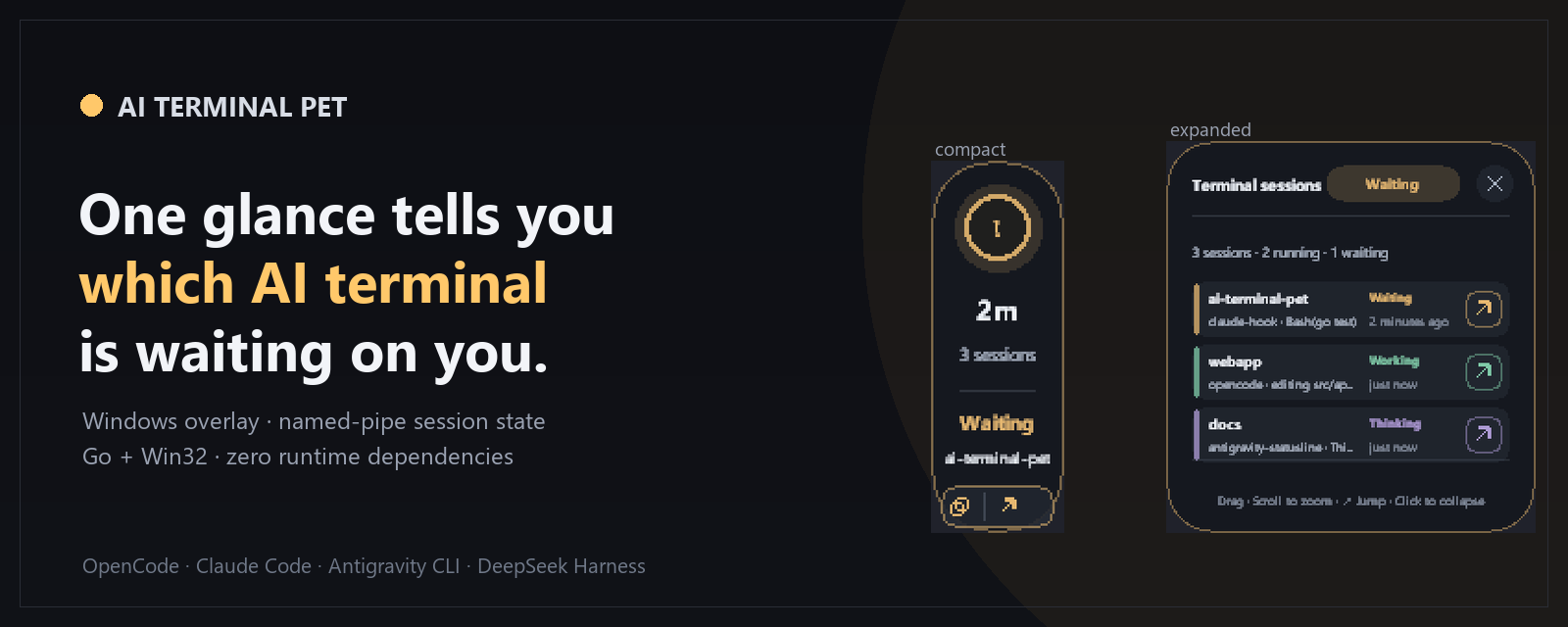






English
The problem
You run Claude Code, OpenCode, or Antigravity in multiple terminal windows at once. A background task prompts for permission to execute a tool, but you are focused in another window and never notice the prompt.
Fourteen minutes later, you switch back only to discover that your build has been sitting idle the entire time. Glancing across multiple terminal tabs wastes focus and breaks your concentration.
ai-terminal-pet anchors a 56px strip to the screen edge. It aggregates your sessions in real time, pulses when an agent needs permission, and displays which project is waiting and for how long.
The table below contrasts the everyday workflow before and after using the overlay:
| Context | Before | After |
|---|---|---|
| Multiple terminals | Four terminal windows open; you lose track of which window needs attention. | One 56px strip on the edge of the screen aggregates every active session. |
| Blocked build | You find out a build was blocked on a permission prompt fourteen minutes ago. | The overlay pulses immediately and shows which project is waiting and for how long. |
| Context switching | You click across tabs to check whether builds and tasks are still running. | A single glance reveals current states without touching your keyboard or mouse. |
What it looks like
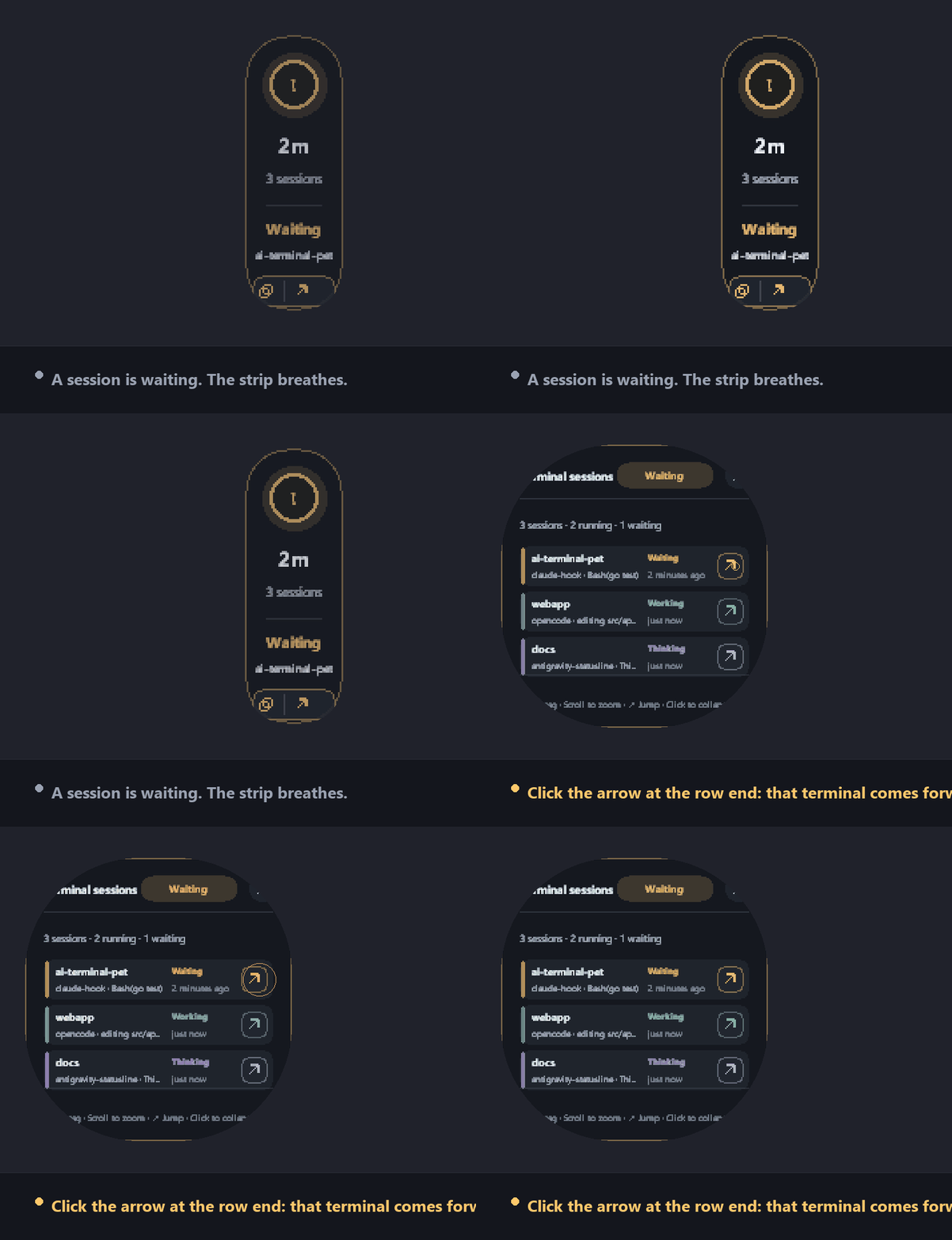 The actual sequence: a session blocks on a permission prompt and the strip breathes, hovering unfolds the session list, and clicking the arrow at the end of the waiting row brings that terminal forward. Frames are rasterized from the shipped renderer; the ring stands in for the click, since a layered window draws no cursor.
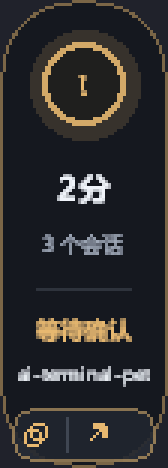 Compact strip: pulsing state orb with status glyph, session count, state word, and waiting project name.
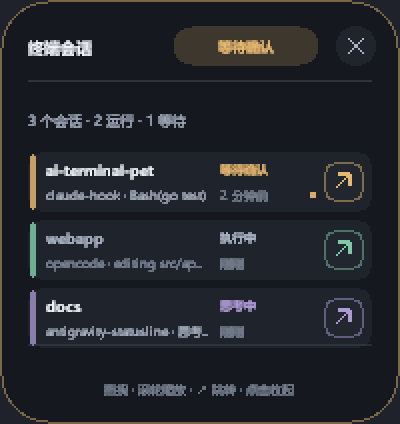
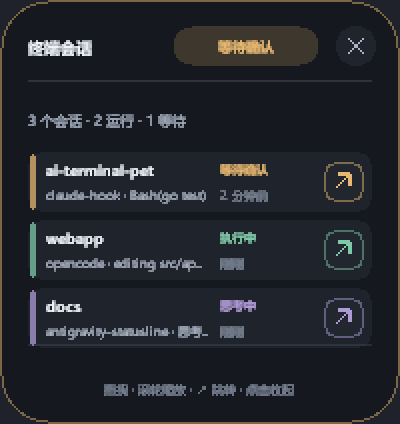 Expanded list: active sessions showing per-row project name, state, source hook, and relative time.
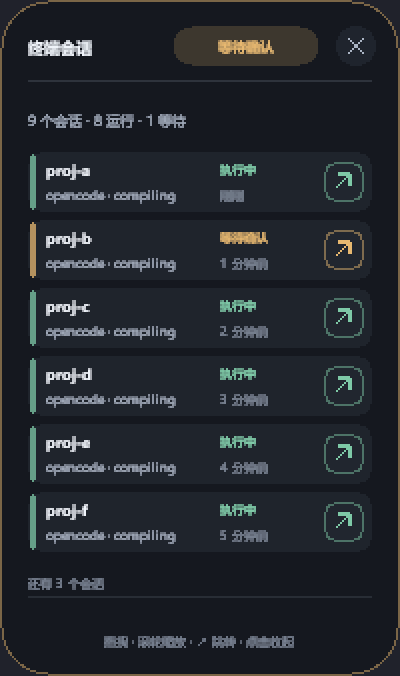 Expanded list with many sessions: six session rows followed by the overflow line showing remaining sessions.
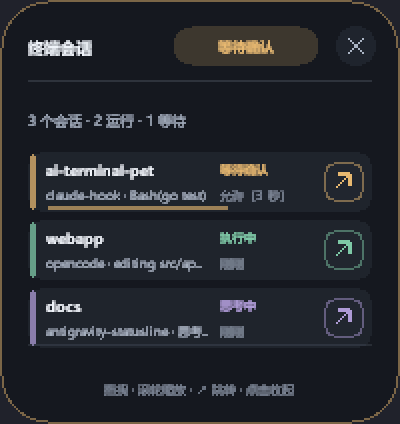 Auto-approve countdown: draining bar with "Allow (5s)" prompt allowing manual veto before automatic permission approval.
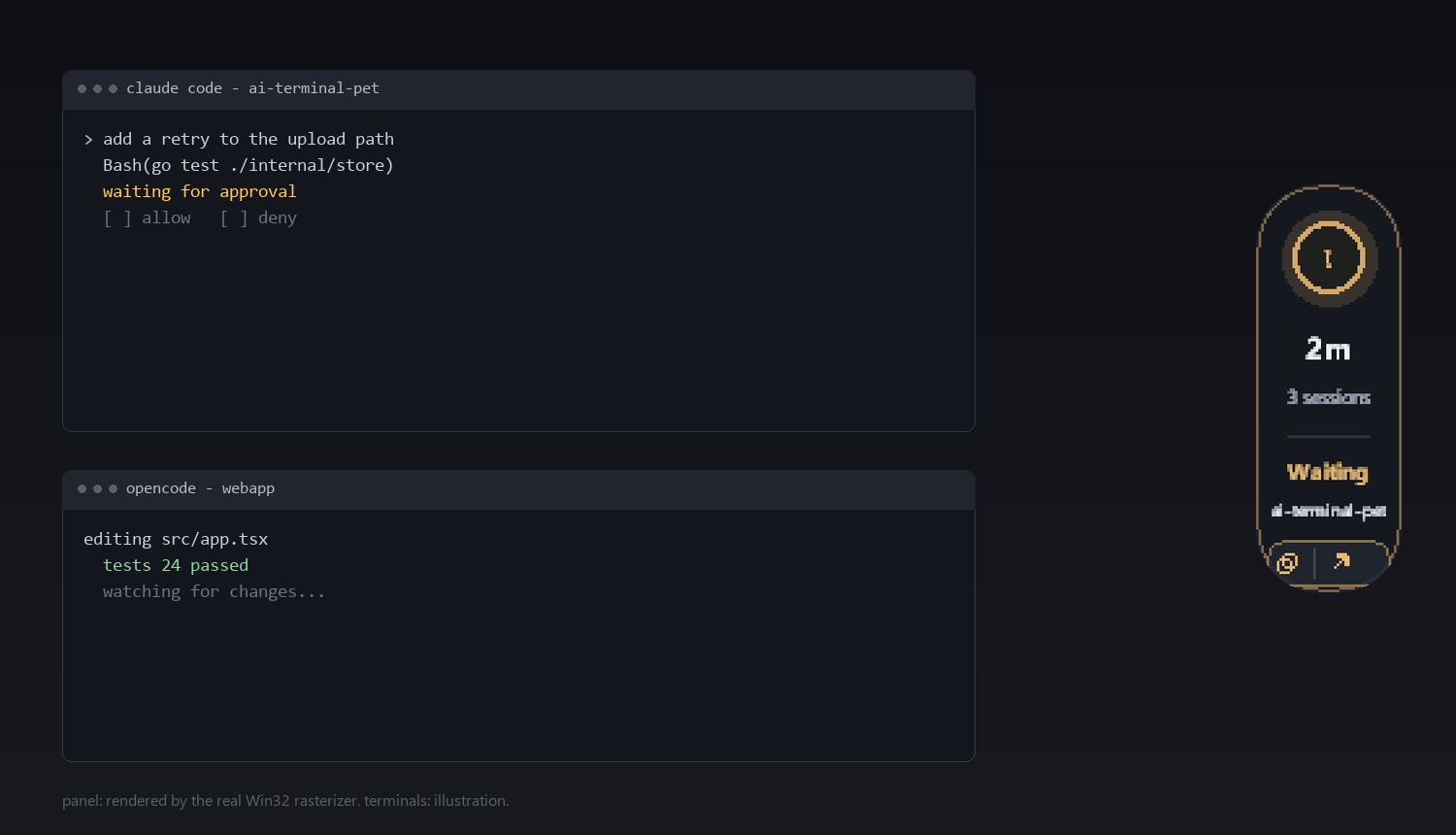 In context: the strip sits at the screen edge beside two terminals, so a blocked session is visible without switching windows. The panel is the real renderer output; the two terminals around it are drawn, since a real capture would contain somebody's project names.
Features
The table below outlines the core capabilities and exact runtime parameters of the application:
| Feature | What it actually does |
|---|---|
| State aggregation | Aggregates sessions across 7 states (idle, thinking, working, tool_use, waiting_permission, error, closed), showing the highest-priority state across all active sessions. |
| Compact and expanded panels | Compact panel occupies 56x156 logical pixels anchored to a screen edge; clicking expands to 200 px wide, displaying 1–6 rows before adding an overflow line. |
| Copy a project path | Click a session row (or the copy half of the compact strip) to put that conversation's working directory on the clipboard; a short pill over the row confirms it, and a failed copy says so instead of claiming success. Rows whose reporter sent no working directory keep their old meaning: clicking them collapses the panel. |
| Whole-panel gestures | Clicking anywhere that is not a session row or a control toggles compact and expanded; drag anywhere moves 1:1 with the cursor; the wheel zooms between 65% and 160%. |
| Edge retract | Slides mostly off-screen when docked at an edge leaving a thin sliver; hovering restores it, while waiting_permission or error states override retraction to remain visible. |
| Tray menu | Right-click tray menu toggles visibility, resets position and zoom, opens settings, switches language, toggles autostart, and configures auto-approve. |
| Settings window | Native four-tab window (General, Sound, Sessions, Look) where every change persists immediately to config.json without an OK button. |
| Synthesized alert tones | Generates 44.1 kHz 16-bit mono PCM WAV tones in memory across four sound schemes (chime, bell, soft, pulse), with separate gates for waiting, error, and finish. |
| Per-session alerts | Fires Windows tray notification balloons and audio alerts when a session starts waiting for you, fails, or finishes — one pure policy decides (see below), so a prompt you are already reading does not also pop a balloon. |
| Attentiveness | An alert depends on what the session is asking for and whether you are looking: approval / question / plan review are told apart from the reason reporters already send, keyboard-and-mouse idle time is read from the OS, and the window that owns the session is resolved with the same ranking jump-to-terminal uses. Unmeasurable facts alert rather than stay quiet. |
| Per-session mute and unread | Right-click a session row to mute or unmute that conversation; a suppressed alert still marks its row unread, cleared by jumping to it, by it running again, or by it disappearing. Muting never silences the auto-approve countdown, which is a safety control, not a notification. |
| Alert receipt | The last alert decision is written to alerts.json beside config.json - not in runtime/, where every *.json is a reporter snapshot and the scanner deletes what it cannot parse - and printed by --json under alerts and summarised by the tenth --doctor check, so "why was I not told" has an answer instead of folklore. |
| Auto-approve and denylist | Provides a 5-second veto window on permission prompts where a tap denies and silence approves; blocks commands matching the dangerous-command denylist. |
| Jump to terminal | Walks session process ancestry and matches window titles to bring the waiting terminal window or tab to the foreground. |
| Scriptable CLI | Outputs structured session state via ai-terminal-pet --json by reading disk snapshots, avoiding blocking on GUI processes. |
| Single instance | A named mutex makes a second launch activate the running overlay instead of starting another one. |
| Connection capacity | The pipe server accepts 32 concurrent connections with a 5 s read timeout, so IPC never blocks the UI thread. |
| Idle lifecycle | A session is dropped only after a 2-minute absence grace; with no session left, the process removes itself after 10 minutes. |
How it works
Host CLI (Claude Code / OpenCode / Antigravity)
       │
       ▼ (Fire-and-forget hooks)
reporters/*.js
       │
       ▼ (JSON line over Windows named pipe: \\.\pipe\ai-terminal-pet-v1-<8hex>)
AI-Terminal-Pet.exe (Go 1.23, single-instance mutex)
       │
       ├─► internal/pipeserver (32 connections, 5s timeout, OK/ERR response)
       ├─► internal/store (in-memory state, TTL, disk snapshots fallback)
       └─► internal/ui (Win32 layered window, GDI topmost canvas)
-
Per-user named pipe: IPC flows through
\\.\pipe\ai-terminal-pet-v1-<8hex>, where<8hex>is derived from the SHA-256 hash of the user home directory. The exact same pipe-name algorithm is implemented in Go and JavaScript, locked by a cross-language golden test. -
JSON line protocol: Sessions transmit one JSON line per message with a 1 MiB payload cap. The server replies with an exact
OKorERRacknowledgment, and reporters retry until a deadline without treating partial reads as success. -
On-disk snapshots: Snapshot files under
%LOCALAPPDATA%\AI-Terminal-Pet\runtime\provide a fallback channel and serve as the authoritative on-disk record of active sessions. -
OS observation over heartbeats: Session existence is decided by operating system observation of the process table and window titles rather than reporter heartbeats. A session remains active as long as its terminal window exists, and removal requires the host to be unobservable for a continuous 2-minute grace period.
-
Disks beat heartbeats: The disk snapshot is authoritative for session existence: a session that was on disk and is gone is over, while synthetic PIDs from hooks never participate in liveness probing.
-
Connection handling: The server accommodates 32 concurrent connections with a 5s read timeout, keeping IPC processing off the UI thread.
-
GDI rendering: A top-down 32bpp DIB section created with CreateDIBSection is painted through a memory DC and handed to the layered window with UpdateLayeredWindow.
Install
There are three ways in. Pick the one that matches how you got here.
A. DeepSeek Harness user — no Go toolchain, nothing to build
dsh plugin add dsh-ai-terminal-pet
The package carries a prebuilt overlay and this project's own protocol.js. On first load it copies them into %LOCALAPPDATA%\AI-Terminal-Pet\ only when they are missing, so it never overwrites an install you maintain yourself. That is the whole setup: the panel appears on the next session. It is also on npm as dsh-ai-terminal-pet (1.2.12), and the release tarball, a tag-pinned git source and a bare repository URL all work (dsh plugin add <path-or-git-url>); the same bootstrap runs either way.
B. Everyone else — download a package, no Go toolchain
Two packages are published for this release: a self-extracting pet-setup.exe and a portable zip. Both install the same 11 artifacts into the same directory; the zip additionally lets you look inside before running anything.
- Download one of them from the
pet-v1.0.6release:pet-setup.exe(13.5 MB): double-click it. It verifies its own payload againstSHA256SUMS.txtbefore writing anything, then runs the installer inside itself.pet-setup.exe --verifyre-checks the installed files at any time,--uninstallremoves them,--add-to-pathputs the commands on your PATH.ai-terminal-pet-1.0.6-win-x64.zip(5,041,100 B, 17 files): unzip it anywhere and double-clickinstall.cmd. Everything is inspectable first;install.cmd -VerifyOnly,-Uninstalland-AddToPathwork as they do in the source tree.
- Verify that the installation works:
& "$env:LOCALAPPDATA\AI-Terminal-Pet\AI-Terminal-Pet.exe" --json
The zip and the setup exe carry the three binaries, protocol.js, the Harness bundle, the installer and a SHA256SUMS.txt, so the only thing on Windows is one download and one double-click. Neither needs Go, Node, or an installer framework. The release is not code-signed yet, so the first run shows SmartScreen's "unknown publisher" prompt:
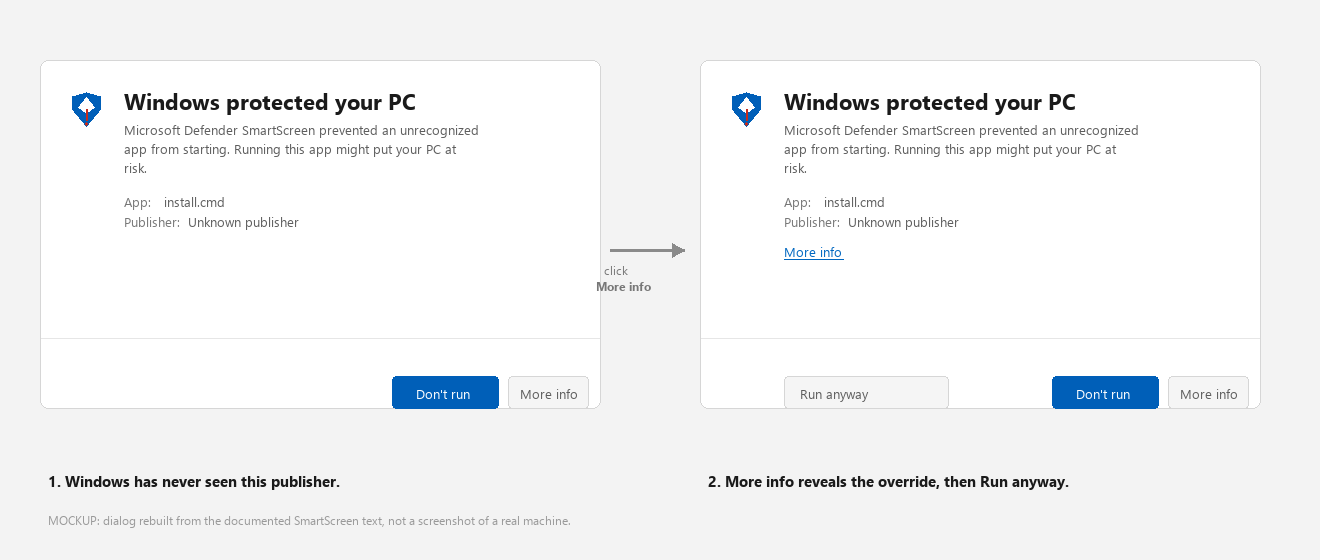 What an unsigned build produces on a machine that has never seen it: click More info, then Run anyway. This image is a reconstruction of the documented dialog, not a capture - see docs/assets/README.md.
That prompt is a certificate the project does not have, not a problem with the file you downloaded — the per-file SHA256 values in SHA256SUMS.txt are the honest substitute until a certificate exists.
After installing, --doctor should look like this (paths shortened here, everything else is the program's own output):
 Ten checks, and the one that matters when you see an empty panel is
instance — if it says a live instance is listening, the overlay is healthy and the missing piece is the terminal's reporter, not the install.
C. Developers — build from source (Go 1.23+)
# 1. Build the overlay, the native statusline shim and the native hook
go build -trimpath -buildvcs=false -ldflags "-s -w" -o .\bin\AI-Terminal-Pet.exe ./cmd/ai-terminal-pet
go build -trimpath -buildvcs=false -ldflags "-s -w" -o .\bin\pet-statusline.exe ./cmd/pet-statusline
go build -trimpath -buildvcs=false -ldflags "-s -w" -o .\bin\pet-hook.exe ./cmd/pet-hook

# 2. Install (stops a running overlay, copies, re-hashes every artifact)
.\scripts\install.cmd

# 3. See it work
& "$env:LOCALAPPDATA\AI-Terminal-Pet\AI-Terminal-Pet.exe" --json
Re-verify the installed artifacts at any time with per-file SHA256 checks:
.\scripts\install.cmd -VerifyOnly
It prints install: verified - 11 file(s) match the repository, 0 warning(s) and exits 0 only when every deployed artifact matches (the 11 artifacts are the overlay, the statusline shim, the native hook pet-hook.exe, protocol.js, and the 7 files of the DeepSeek Harness bundle). The installer itself stops a running overlay first and waits for the process to release its file handles; a plain file copy over a live binary fails at random, which is what the retry loop and the SHA256 comparison after every copy are for.
install.cmd is the entry point rather than install.ps1 because a stock Windows install runs PowerShell at RemoteSigned, and RemoteSigned refuses a local .ps1 that still carries the "downloaded from the internet" zone marker — the exact shape of a file you unzip from a release. The wrapper starts one powershell.exe with -ExecutionPolicy Bypass, changes no machine or user policy, forwards every argument and every exit code, and adds no install logic: install.ps1 remains the only implementation, and .\scripts\install.ps1 -VerifyOnly works unchanged on a machine whose policy already allows it.
Put ai-terminal-pet on your PATH so you can type the bare command:
.\scripts\install.cmd -AddToPath
It writes only HKCU\Environment\Path (never HKLM), backs the previous value up to <install dir>\path-backup.txt first, and does nothing if the directory is already listed. Open a new terminal for the change to take effect. -Uninstall also removes that PATH entry, so uninstalling does not leave a dead entry behind (the previous value is backed up again, this time into %TEMP%).
Without this step the installer does not touch your PATH at all, so keep using the full path & "$env:LOCALAPPDATA\AI-Terminal-Pet\AI-Terminal-Pet.exe" --json.
The installer lives under scripts/ rather than at the repository root on purpose: market indexers fetch a root install.ps1 by name and regex-scan it, and this script legitimately mentions the HKCU Run key and a -Recurse -Force cleanup. Moving it one level down takes those two false positives off the root without taking any behaviour off the script.
Run ai-terminal-pet --doctor at any point after installing to self-check the environment, install files, runtime state, pipe, autostart entry, and node availability. To remove the deployed artifacts, run .\scripts\install.cmd -Uninstall; it asks for a typed yes confirmation first, refuses unsafe target directories, and accepts -Force for unattended removal.
Installing a terminal hook is required for that terminal to report; see the next section to connect your tools.
Connect your terminal
| Terminal | How to connect | What you get |
|---|---|---|
| OpenCode | Add file:///C:/path/to/ai-terminal-pet/reporters/opencode.js to plugins in opencode.json (OpenCode 2.x: the file is a plugin with an id and a setup) | Turn, tool and permission states, including the difference between "waiting for you" and "still working" |
| Claude Code | Add & "%LOCALAPPDATA%\AI-Terminal-Pet\pet-hook.exe" --mode=claude for SessionStart, SessionEnd, UserPromptSubmit, PreToolUse, PostToolUse, Stop, and Notification in settings.json. node <repo>/reporters/claude-hook.js still works and is the fallback when you cannot run the .exe. | Real-time status updates, tool execution tracking, and permission prompt alerts |
| Antigravity | Set statusLine.command to pet-statusline.exe and configure pet-hook.exe --mode=antigravity for agent and tool events (antigravity-hook.js is the fallback) | Fast statusline updates, agent state changes, and permission request forwarding |
| DeepSeek Harness | Install the Cordis bundle from %LOCALAPPDATA%\AI-Terminal-Pet\bundles\ai-terminal-pet-bridge\ via the plugin manager (install_bundle) | turn/start to working, tool/call to tool_use, approval/asked to waiting_permission, tool/result with an error to error, turn/end to idle, process exit to closed |
| Anything else | Run node reporters/generic.js with --source, --state, and --project flags | Instant status reporting from any custom script or CLI tool |
Writing your own reporter for a tool that is not listed here needs no source reading: docs/PROTOCOL.md specifies the wire protocol (fields, state semantics, pipe-name derivation, acknowledgment contract, and redaction rules) that a conforming reporter must implement.
The Harness side is a host-only Cordis bundle: it holds no pipe-name, state-set or snapshot logic of its own, it loads the protocol from %LOCALAPPDATA%\AI-Terminal-Pet\protocol.js and delegates everything to it.
The Harness side has a second, self-contained option since dsh-ai-terminal-pet 1.1.0: a standalone DSH plugin package at packages/dsh-ai-terminal-pet, also shipped as a GitHub Release asset. The package is now 1.2.8 (tag dsh-plugin-v1.2.8, asset dsh-ai-terminal-pet-1.2.8.tgz); 1.2.7, 1.2.6, 1.2.5, 1.2.4, 1.2.3, 1.2.2, 1.2.1, 1.2.0 and 1.1.0 stay published and immutable but are superseded. 1.2.7 shipped the 1.0.1 overlay, whose compact strip answers "which terminal is blocked, and for how long" without expanding the panel; 1.2.8 ships 1.0.2, where the look itself is a setting - three named palettes, an optional per-terminal tint on each row's source name, and "start hidden". 1.2.5 is the first version that works on a machine that never ran the overlay: it declares vendor/package.json as CommonJS (without it, require() of the shipped protocol returned a namespace with no sendStatus, so a DSH_PET_NO_BOOTSTRAP=1 install silently reported nothing), it reads the project path, lineage and start time from the session header instead of process.cwd() (the desktop Harness starts from the install directory, so every session was attributed to one wrong path), and its de-duplication signature now covers state, reason, tool, project, title and parent session instead of state alone. 1.2.4 was a wording fix (one market install read as if it covered every terminal, and it does not - the bundle mirrors Harness sessions out of the box, while OpenCode, Claude Code and Antigravity sessions appear only after each of those terminals gets its own reporter); 1.2.3 added the dsh.marketplace block a third-party storefront reads before offering a plugin to its desktop client, and 1.2.2 moved the installer from the repository root into scripts/, which edits Go comments, which changes the source digest vendor/manifest.json records. Release assets cannot be edited, so a wording or manifest fix costs a version - shipping different bytes under an unchanged version is exactly the drift this repository removes. The three install forms are verified end to end, and the 1.2.4 assets were installed again from three fresh directories after the release went out: the release tarball in 1.8 s, the tag-pinned git source in 3.7 s, and the repository URL in 6.5 s, all rc=0, with the unpacked bytes matching git show ff7f6de: file for file (a bare add dsh-ai-terminal-pet still waits on the npm release described below):
# from the release tarball: no git clone, no build step
dsh plugin --profile <profile> add https://github.com/jjjjjjjjnnjnn/ai-terminal-pet/releases/download/dsh-plugin-v1.2.12/dsh-ai-terminal-pet-1.2.12.tgz

# from git, pinned to the release tag
dsh plugin --profile <profile> add "git+https://github.com/jjjjjjjjnnjnn/ai-terminal-pet.git#dsh-plugin-v1.2.12&path:/packages/dsh-ai-terminal-pet"

# from the repository URL: resolves through the root manifest shim
dsh plugin --profile <profile> add github:jjjjjjjjnnjnn/ai-terminal-pet
The repository URL works because the repository root now carries a 68-line package.json shim that contains no code: it points main at the package, declares dsh.bundle.patch as ./packages/dsh-ai-terminal-pet/cordis.patch.yml and limits files to that subtree. Without it a host that reads the repository root sees no dsh.bundle, installs an empty package and warns declares no dsh.bundle. The shim is private, so it never occupies the npm name, its version tracks the package (verify.mjs asserts they are equal, so a bump cannot land in one manifest only), and it carries the same dsh.catalog block the package does.
The package ships no lifecycle hooks at all — prepack was removed in 1.1.0 — because pnpm runs them for a git dependency and fails an unpinned source with an allowBuilds error that never mentions AI Terminal Pet. vendor/ is committed instead and only verified: node scripts/vendor.mjs --check re-hashes the two vendored files and checks vendor/manifest.json against them, writing nothing. One form still fails, for a different reason: git+https://github.com/jjjjjjjjnnjnn/ai-terminal-pet.git&path:/packages/dsh-ai-terminal-pet without a #ref — pnpm concatenates the fragments and asks ls-remote for a repository that does not exist, so it reports repository ... not found.
1.2.0 also makes the package self-describing: dsh.catalog declares a category (tool), a one-line summary in English and Chinese, and five capabilities — windows-overlay, named-pipe, session-state, tray-icon, no-network. Those capabilities are self-declared and unenforced; dsh does not sandbox plugins, so the block describes what the overlay already does rather than granting it permission to do so. keywords gained dsh-plugin, the tag auto-indexing marketplaces harvest. 1.2.3 adds dsh.marketplace next to dsh.bundle and dsh.catalog: profiles: ["desktop", "headless", "web"], requiresBuildApproval: false and manualSteps: false. That field is read by third-party registries, not by DSH - the plugin mounts through dsh.bundle either way, and this bundle only subscribes to session/event, so no profile-specific service is involved: that makes two independent discovery paths — registry review (a reviewed entry merges into main and only then appears in the list) and topic/keyword harvesting (no application needed at all). Two marketplaces already harvest automatically: LivXue/dsh-plugin-shop rebuilds daily from npm metadata, and every entry in its published shard is pinned by tarball integrity, so a Git-only package cannot appear there until it reaches npm; zasenjc/dsh-plugins-store syncs every 30 minutes and lists any public repository carrying both the dsh-plugin and deepseek-harness topics.
Its payload carries a prebuilt overlay and this project's own protocol.js, copied into %LOCALAPPDATA%\AI-Terminal-Pet\ on first use only when they are missing — an existing install is never overwritten, and the overlay keeps running entirely on its own, so a machine that only wants the pet still needs nothing but scripts/install.cmd. Its entry in the awesome-dsh-plugin registry (PR #13937) passed both upstream checks and was merged on 2026-11-10, so the upstream catalogue lists the entry (that file pins which tarball the entry installs and can only be changed by pull request against that repository, never by an edit here: PR #14076 moved it to 1.2.2 and merged at 19:59:37Z, and PR #14089 moved it to 1.2.3 and merged at 2026-11-10T21:10:15Z, so the next rebuild renders that asset while PR #14243, opened on 2026-11-11, carries 1.2.4 and adds the same "other terminals need their own reporter" sentence to both descriptions; imsai-sh/awesome-deepseek-harness-plugins PR #912 makes the same wording fix there, and that repository never auto-merges an edit to an existing entry, so it waits for a maintainer; #14063, which had targeted 1.2.1, was closed once 1.2.2 packed the corrected bytes); the rendered catalogue page returned 404 at 16:16Z and became reachable later the same day once the upstream site build finished (42844452013, started 15:27:09Z, concluded 16:39:27Z); the catalogue file that DSH's in-app Market actually loads (plugins.json; its count was 10119 before that build and 10,304 when re-read after the 1.2.3 release) contains this repository too, but its install command is rendered from that tarball field at build time, so the copy read after the merge still emitted the 1.2.0 asset; the next rebuild rendered 1.2.2, then #14089 carried 1.2.3 past that when it merged at 2026-11-10T21:10:15Z. In a comment on the pull request the maintainer explained that he trimmed the merged description himself: for a Harness session the panel only mirrors state and jumps to the DSH window, so approving still happens inside DSH. The DSH-Plugins-Marketplace index picked this repository up automatically; its 18:08:44Z rebuild on 2026-11-10 records pkg_name/version, the verdict bundle-plugin, and now risk_tier: "safe" with an empty risk_flags list. That is not a favour granted by an allowlist: the scanner only fetches root-level install.ps1/install.sh/package.json and regex-scans them, and the two lines it used to match (CurrentVersion\Run and Remove-Item -Recurse -Force) moved into scripts/ together with the installer, so those rules have no input left (the behaviour itself is unchanged). The DSH in-app Discover index accepts an npm version or a git source pinned to a 40-character commit. Both are satisfied now: the package is published on npm (dist-tags.latest is 1.2.7, 17 files, the tarball byte-identical to the Release asset), so dsh plugin --profile <profile> add dsh-ai-terminal-pet resolves by bare name. Five more catalogues were filed after that release: dshbase, dsh.so, dsh-plugin.org, AllDSH and DSH Marketplace (which takes submissions through its own POST /api/v1/submissions); all five are topic-based discovery plus a human review, so none of them is a committed listing yet, and neither DshMarketPlace/awesome-dsh-plugin nor the curated cache behind dshmarketplace.dev carries this repository at the moment (/api/v1/plugins?q=ai-terminal-pet answered {"total":0} and data/curated.yml has no entry for it). One reviewed catalogue has actually rendered the entry: dshopen closed it as completed, and its live dshopen.org/index.json (1,207 entries) lists dsh-ai-terminal-pet with a git source; a newer version appears there only after that site rebuilds.
Because the plugin index format accepts a git source pinned to a commit, this repository also publishes its own index, so Discover works before npm does. Add this URL once in DSH under Plugins → Discover → index sources:
https://raw.githubusercontent.com/jjjjjjjjnnjnn/ai-terminal-pet/main/docs/market-index.json
docs/market-index.json is one entry, dsh-ai-terminal-pet 1.2.7, whose install spec is the same git+...#<commit>&path:/packages/dsh-ai-terminal-pet form that was installed end to end in 3.7 s above, pinned to 0050d0a, the commit the dsh-plugin-v1.2.8 tag points at. It is validated with the host's own parseMarketIndex from @deepseek-ai/dsh-plugin-market-index: format: 1, en localized text, declared category and label ids, an https icon pinned to the release commit, and an exact SemVer with a Unix-seconds publishTimestamp. The git source stays even though npm now carries the same bytes: it pins a commit, so the index keeps working for a host that cannot reach the registry.
Run node reporters/generic.js directly to report from any other CLI or script:
node reporters/generic.js --source=aider --state=working --project="$PWD"
node reporters/generic.js --source=codex --state=waiting_permission --reason=approve
echo '{"state":"error","reason":"build failed"}' | node reporters/generic.js --source=ci --stdin
--source: sets the reporter identity name.--state: sets one of the seven session states specified in docs/PROTOCOL.md.--stdin: parses a JSON payload piped directly from standard input.
Control it from a script
The commands below assume ai-terminal-pet is on your PATH (.\scripts\install.cmd -AddToPath). If you skipped that step, prefix every command with the full path instead: & "$env:LOCALAPPDATA\AI-Terminal-Pet\AI-Terminal-Pet.exe" --json.
| Command | Effect |
|---|---|
ai-terminal-pet | Start the overlay (no-op if already running) |
ai-terminal-pet --show | Reveal the running overlay |
ai-terminal-pet --toggle | Switch between compact and expanded views |
ai-terminal-pet --reset | Re-anchor to the screen edge at 100% zoom |
ai-terminal-pet --settings | Open the settings window |
ai-terminal-pet --quit | Stop the running overlay |
ai-terminal-pet --json | Print the current sessions as JSON (add --pretty for formatted output) |
ai-terminal-pet --doctor | Run 9 environment and install checks; exit code 1 when a check fails. Again: needs the install directory on PATH, or call it by full path |
ai-terminal-pet --autostart | Report the run-at-logon state |
ai-terminal-pet --autostart=on | Enable run at logon |
ai-terminal-pet --autostart=off | Disable run at logon |
ai-terminal-pet --version | Print version information |
ai-terminal-pet --help | Print CLI usage help |
Run --json to inspect active sessions directly from scripts or shell status lines:
ai-terminal-pet --json --pretty
{
  "schemaVersion": "ai-terminal-pet.v1",
  "state": "waiting_permission",
  "count": 2,
  "generatedAt": "2026-11-09T21:30:00Z",
  "sessions": [{"project": "ai-terminal-pet", "state": "waiting_permission", "source": "claude-hook"}]}
The --json command never blocks on a GUI process because it reads session snapshots directly from disk.
Settings and where everything lives
Right-click the overlay for a quick menu (show/hide, reset position, notifications, sound and its volume, always-on-top, edge retract, auto-approve, language, start with Windows, quit) — or Settings… in that menu, or ai-terminal-pet --settings, for the full window. There are four tabs (General, Sound, Sessions, Look) and no OK button: every change applies as soon as you make it, except Auto-approve timeout, which is read once at startup.
| Tab | Setting | config.json key | Default | What it does |
|---|---|---|---|---|
| General | Notifications | notifications | true | Tray balloon when a session starts waiting for permission or hits an error |
| General | Always on top | alwaysOnTop | true | Keeps the panel above normal windows |
| General | Edge retract | edgeRetract | true | Slides into the screen edge when the pointer leaves |
| General | Opacity | opacity | 235 | Panel opacity, 40–255 |
| General | Language | language | auto | auto, en or zh-CN; auto follows the Windows UI language |
| General | Start with Windows | (registry) | off | Writes the HKCU\...\Run entry; same as --autostart=on |
| Sound | Alert sound | sound | true | Master switch for the synthesized tone |
| Sound | Scheme | soundScheme | chime | chime, bell, soft or pulse; the play button auditions it |
| Sound | Volume | soundVolume | 85 | 0–100 |
| Sound | Sound on waiting | soundOnWaiting | true | Tone when a session needs approval |
| Sound | Sound on error | soundOnError | true | Tone when a session errors |
| Sound | Notify on finish | notifyOnFinish | true | Softer, distinct tone when a busy session goes idle |
| Sessions | Auto-approve | autoApprove | false | Off by default; see Safety below |
| Sessions | Auto-approve timeout | autoApproveTimeoutSec | 5 | Veto window, 1–60 s; needs a restart |
| Sessions | Reset window position | (immediate) | — | Same as --reset |
| Look | Theme | theme | slate | slate (dark, the one in every screenshot), paper (light) or contrast (black with saturated state colours); applies to the panel and the settings window |
| Look | Colour by terminal | perSourceColor | false | Tints each expanded row's source name by which CLI it came from; the state colour is left alone |
| Look | Start hidden | hiddenAtLaunch | false | Begin in the tray; a reporter or --show brings the panel back. Startup only - the tray entry point stays authoritative afterwards |
The remaining keys in config.json are runtime state, not settings: placed, x, y, zoom, expanded. The overlay writes them so it reopens where you left it; editing them by hand is harmless but pointless.
| Path | Contents |
|---|---|
%LOCALAPPDATA%\AI-Terminal-Pet\config.json | Everything in the table above |
%LOCALAPPDATA%\AI-Terminal-Pet\state.json | Window placement (the runtime keys) |
%LOCALAPPDATA%\AI-Terminal-Pet\runtime\ | One JSON snapshot per live session; the overlay and --json both read this |
%LOCALAPPDATA%\AI-Terminal-Pet\approvals\ | pending-*.json plus the .deny sibling the panel writes when you tap to veto |
%LOCALAPPDATA%\AI-Terminal-Pet\protocol.js | The wire protocol every reporter loads |
%LOCALAPPDATA%\AI-Terminal-Pet\error.log | Rotated crash log; --doctor tells you whether it exists |
A hand-edited or corrupted config.json never bricks anything: out-of-range values fall back to their defaults and an unreadable file means "defaults", with auto-approve treated as off.
Safety
Terminal hooks run inside your development environment, so their boundaries are strict:
-
Fail-fast reporters: Reporters run fire-and-forget, catch errors internally, and never throw exceptions or block your host CLI. Any reporter failure terminates silently without interrupting user keystrokes or host terminal operations.
-
Auto-approve disabled by default: The auto-approve feature starts turned off; activating it requires explicit configuration. A terminal hook that cannot read the configuration file automatically defaults to off.
-
Configurable veto window: When auto-approve is active, permission prompts display a draining bar on the expanded panel; a single tap denies the prompt, while silence approves after the countdown. Ordinary tool calls without permission prompts are never delayed.
-
Dangerous-command denylist: Destructive commands never auto-approve and always fall back to manual prompts, blocking patterns such as
rm -rf,git push --force,format C:,rd /s, andshutdown /s. A matched command forces manual review in the terminal. -
Zero network activity: The application makes no network calls, contains no telemetry, and stores all configuration and runtime snapshots under
%LOCALAPPDATA%\AI-Terminal-Pet\. No code or logs leave your local machine. -
Per-user ACL protection: The named pipe DACL
"D:P(A;;GRGW;;;OW)(A;;GRGW;;;SY)"grants read/write access to the owner of the pipe and to LocalSystem only, and nothing for any other account on the machine. Other local users therefore cannot connect and cannot occupy the pipe name.
Known limits
-
Windows only: The overlay relies directly on Win32 layered windows and Windows named pipes; macOS and Linux are not supported.
-
Process creation overhead: Antivirus scanning hooks can make each Node.js process launch take roughly 1s; using the native
pet-hook.exe/pet-statusline.exebinaries or adding an AV exclusion for the install folder reduces this latency. The delay comes from process scanning rather than application code. -
Low-integrity working directories: If a whole directory tree carries a Low mandatory integrity label, executables inside it inherit that label, and a Low-integrity process cannot open the overlay's pipe (the overlay runs at Medium). Copy the binaries to the install directory or
%TEMP%before testing from such a tree; the installed copies are unaffected. -
Not code-signed: there is a portable zip and a self-extracting
pet-setup.exefor a Windows user who does not use the DeepSeek Harness (scripts/package.ps1builds both; a GitHub Release ships them), but no.msiand no signature. The first run shows SmartScreen's "unknown publisher" prompt, and the honest provenance is the per-file SHA256 list inside each package rather than a certificate. A signed installer is on the roadmap. -
Named-pipe squatting: Same-user pipe preemption is mitigated by acquiring a named mutex first, but it is not completely eliminated. A full challenge-response handshake remains documented for future hardening.
-
Auto-approve countdown restart: Changing the auto-approve countdown duration requires an overlay restart, while all other settings hot-reload automatically.
-
No pixel regression tests: Pure UI logic, hit testing, and layout bounding boxes are unit-tested, but automated visual pixel regression testing is not in place. Visual verification relies on the PNG preview generator.
-
Window focus granularity: Session jump focusing resolves tabs in Windows Terminal, but classic conhost windows and VS Code integrated terminals resolve only to the parent window level.
Roadmap
-
Native hook binary:
pet-hook.exeships as the primary Claude Code and Antigravity reporter (--mode=claude|antigravity), and the JavaScript hooks remain as the reference implementation and fallback. -
Standalone installer: a signed
pet-setup.exe/.msi. The unsigned single-file installer already ships (pet-setup.exe, built fromcmd/pet-setup); what is missing is the certificate, and MSI packaging for enterprise distribution. -
Cross-platform support: Extracting the UI layer behind a presenter interface with Unix domain socket transport for macOS and Linux (not started).
-
Binary size reduction: Bring the main executable under 2.5 MiB (currently 4.17 MiB) by stripping reflection metadata and dropping unused packages, and replace the regexp-based redaction in pet-statusline with a hand-written scanner.
Shipped after v0.9.0: the wire protocol specification (docs/PROTOCOL.md) and the ai-terminal-pet --doctor self-check command, so both items previously listed here as pending are now available.
Shipped after v0.9.0 as a distribution channel, not just a repository: the Harness bridge is now also a standalone DSH plugin package (dsh-ai-terminal-pet 1.2.7, GitHub Release tag dsh-plugin-v1.2.8, replacing the superseded 1.2.6, 1.2.5, 1.2.4, 1.2.3, 1.2.2, 1.2.1, 1.2.0 and 1.1.0). 1.2.5 is the first version that works on a machine that never ran the overlay: it marks the vendored tree CommonJS so require() of the shipped protocol returns sendStatus, reads the project path, lineage and start time from the session header instead of process.cwd(), and de-duplicates on state, reason, tool, project, title and parent session rather than state alone. 1.2.4 was the wording fix: the market copy overpromised, because the package mirrors Harness sessions on install while OpenCode, Claude Code and Antigravity sessions arrive only once each of those terminals gets its own reporter, and the packaged README plus the dsh.catalog summary now say so. It also declares dsh.marketplace.profiles so a desktop-facing storefront offers it to the desktop profile instead of hiding it. It installs from the release tarball, from git pinned to that tag, from the repository URL through the root manifest shim, or by bare package name from npm, and it describes itself to storefronts through dsh.catalog. Its registry entry (PR #13937) was merged on 2026-11-10, and the upstream README already lists the entry under "Notifications & Integrations"; the maintainer trimmed one sentence while merging, because for a Harness session the panel only mirrors state and jumps to the Harness window - approvals still happen inside DSH. Merged into main is not the same as visible in a market - but visibility did arrive: the catalogue page returned 404 at 16:16Z and 200 after the upstream site build finished at 16:39:27Z, and plugins.json (count 10119 to 10230, 10,304 when re-read after the merge) lists this repository; the install command in that file is rendered from the entry's tarball field at build time, which is why each version needs its own follow-up pull request (#14076 carried 1.2.2, #14089 carried 1.2.3, #14385 carried 1.2.5 and merged at 2026-11-11T17:20:15Z, and #14439 carried 1.2.6 and merged at 20:12:31Z, after which the rebuilt plugins.json renders 1.2.6). Two more reviewed catalogues list the entry: imsai-sh/awesome-deepseek-harness-plugins merged the catalog file in PR #902 at 21:49:53Z, and zhu1090093659/dsh-community-plugins merged it in PR #97 at 2026-11-11T05:06:32Z; the 1024 Store page behind the first of those answers 200. The topic/keyword path needs no application at all, and the DSH-Plugins-Marketplace index picked this repository up on its own: its 18:08:44Z rebuild records bundle-plugin plus risk_tier: "safe" with an empty risk_flags, because the scanner only ever fetched the repository-root install.ps1 and the installer had moved into scripts/ by the time it looked. Both preconditions the DSH in-app Discover index requires are satisfied: a commit-pinned git source (this repository's own index, above) and an npm release (dist-tags.latest is 1.2.7).
Non-goals
- No accounts, no cloud sync, no telemetry; everything stays in
%LOCALAPPDATA%. - Not a terminal multiplexer and not a replacement for your terminal — it only tells you which session wants attention.
License
Distributed under the MIT License. See LICENSE for details. Third-party dependencies are used as libraries only with zero vendored code: github.com/Microsoft/go-winio (MIT), github.com/lxn/win (BSD-style), and golang.org/x/sys (BSD-style).
Develop from source
Run verification commands when modifying code:
go vet ./...
go test -count=1 ./...
# node --check only validates the FIRST file it is given, so check each one:
for f in reporters/*.js; do node --check "$f"; done
node integrations/deepseek-harness/verify.mjs
# fresh-machine end-to-end: packs the plugin, extracts it into a DSH-style
# node_modules, loads it with a fake Cordis context, installs with install.ps1
# and drives all three binaries inside a sandbox with its own LOCALAPPDATA,
# USERPROFILE and named pipe (drop --no-overlay to also boot the overlay there)
node tests/fresh-machine.mjs --no-overlay
$env:PET_PREVIEW_DIR = "$env:TEMP\petpreview"
go test ./internal/ui -run TestRenderPreview
-buildvcs=false in the three build commands is not decoration: it strips the VCS stamp, which encodes the commit and working-tree state at build time (go version -m shows (devel) without it and a pseudo-version like v0.0.0-20261111122731-3529bffc12e1+dirty with it). Two builds of the same source therefore produce identical bytes, on any machine and at any date. Without it .\scripts\install.cmd -VerifyOnly — which compares the installed files against the copy in your working tree — reports a false failure whenever one side carries the stamp and the other does not. The binaries themselves are not committed (bin/ is ignored); you always build them locally.
.\scripts\install.cmd -VerifyOnly re-checks every installed artifact against the recorded SHA256 list, and .\scripts\install.cmd -Uninstall removes them. CI runs the same gates on every push: .github/workflows/ci.yml builds on windows-latest and fails the build job on any gofmt -l output, go vet finding, failing go test -count=1 ./..., unsuccessful go build -trimpath -buildvcs=false -ldflags "-s -w" build, any reporter failing its own node --check, or failed node integrations/deepseek-harness/verify.mjs, node packages/dsh-ai-terminal-pet/scripts/vendor.mjs --check, node packages/dsh-ai-terminal-pet/verify.mjs, node tests/fresh-machine.mjs --no-overlay, or .\scripts\package.ps1. A second job, scan, runs govulncheck and gosec in its own toolchain: a govulncheck report of a vulnerable called function or a gosec finding at high severity and high confidence turns it red (G115 is excluded as a rule family, G703 only on the four files that had hits - both justified in the workflow). That last one is also the release step: it writes dist\ai-terminal-pet-<version>-win-x64.zip, which is the file a Release asset ships, and prints the SHA256 that goes into the release notes. It refuses to build when bin\AI-Terminal-Pet.exe and the plugin package's vendor\AI-Terminal-Pet.exe disagree, because those are one product under one version and a stale copy on either side would hand two users different binaries with the same name (PET_PACKAGE_SKIP_VENDOR_CHECK=1 downgrades that to a warning, and CI is the only caller that needs it, since the runner's Go release differs from the one that committed the vendored binary).
tests/fresh-machine.mjs is the suite that answers "does this work on a machine that has never seen it". Every scenario runs in a throwaway sandbox with its own LOCALAPPDATA, USERPROFILE (so even the named pipe is a different one) and DSH-style node_modules: the empty-machine CLI and --doctor, the package install through npm pack, the plugin's bootstrap copy and its event→state mapping, the overlay booting with no prior config, the standalone install.ps1 path plus both native hooks, config defaults and the auto-approve/veto handshake, and hostile input (corrupt config, no LOCALAPPDATA, oversized or malformed stdin). It stops a running overlay for the duration and starts it again afterwards, because the single-instance mutex is per Windows session.
中文
本页下方是完整中文版。中文不是英文的逐句直译,而是按中文技术读者的阅读习惯重写。
它解决什么问题
日常使用 AI 编程终端时,很多开发者习惯同时开启两三个会话:一个终端运行 Claude Code 重构模块,另一个终端跑 OpenCode 执行测试,第三个终端用 Antigravity 生成文档。
终端在后台自主运行时,你可能会切换到浏览器查阅技术文档,或者在编辑器中编写业务逻辑。然而,AI 终端随时可能因为调用外部工具或执行脚本而暂停,等待你的权限确认。
这类权限提示不会抢占操作系统焦点,也不会主动发出系统通知。四个终端窗口重叠在桌面后台,某个窗口静静等待确认;当你十多分钟后切回终端时,才发现进度早在十四分钟前就已经停滞。
ai-terminal-pet 在屏幕边缘贴上一条 56 像素宽的状态带。你无需来回切换窗口,扫一眼就能看到哪一个项目正在等待确认、当前已经等待了多久。
所有会话正常执行时,面板仅占用极窄的屏幕边沿,贴边收起后只留一条细边;出现等待确认或报错时,浮窗会自动完全展开并脉动提醒;当全部终端关闭后,浮窗在无会话状态下静默等待 10 分钟便会自行退出,不长期占用桌面与后台资源。
长什么样
以下截图均由真实的 Win32 渲染引擎在版式测试中直接光栅化生成,与程序运行时的像素布局完全一致:
真实交互顺序:有会话卡在权限确认时状态带开始呼吸,悬停展开会话列表,点等待中那一行的行尾箭头就把对应终端带到前台。每一帧都出自发布用的同一个光栅器;点击那一拍用一圈扩散代替光标——分层窗口本身不画光标。
紧凑态:展示呼吸脉动的状态球、当前纳管会话总数、最高紧急度的状态词,以及正在等待确认的项目名。
展开态:展示全部会话列表,每一行清晰标明项目名、执行状态、终端来源以及距上次活跃的相对时间。
会话很多时:超过 6 行后自适应纵向拉长面板,并在列表末尾清晰呈现"还有 N 个会话"溢出行。
 未读行:你不在时到的那条提醒留下了标记而不是气泡。那个点是未读;被静音的行改用整体压暗表示,两种都不占行的宽度。
5 秒否决倒计时:权限请求行展示"允许(5 秒)"倒计时与渐退进度条,在倒计时结束前点击面板即可立即否决。
实际场景:状态带贴在屏幕边缘、旁边是两个终端,于是"哪个会话被卡住了"不用切窗口就能看到。面板那一半是真实光栅器输出,周围两个终端是画出来的——真实截图会带上别人机器上的项目名。
功能
浮窗采用中性石墨底色与低饱和度状态色,所有界面交互遵循"整块可操作"的设计原则,无需刻意瞄准特定微小控件:
| 功能 | 具体行为 |
|---|---|
| 状态聚合 | 聚合 idle、thinking、working、tool_use、waiting_permission、error、closed 七种状态,始终展示所有会话中优先级最高的状态。 |
| 紧凑与展开两态 | 紧凑态固定为 56×156 逻辑像素;点击展开后宽度为 200 像素,自适应展示 1–6 行会话,会话超过 6 行后展示溢出提示。 |
| 整块可点可拖 | 点会话行与控制以外的任何位置切换展开/收起,整块区域均可按住拖拽并与光标 1:1 跟随;滚轮可在 65%–160% 之间无级缩放,按 Esc 键直接收起。 |
| 复制项目路径 | 点一下会话行(或紧凑态条的左半)即把该会话的工作目录放进剪贴板;行上会短暂出现一个"已复制"回执,复制失败时回执写"复制失败"而不是假装成功。上报端没带工作目录的行保持原含义:点它仍然收起面板。 |
| 贴边收起机制 | 面板贴靠屏幕边缘时自动滑出屏幕并保留细边,鼠标悬停即滑出复原;有会话处于等待确认或出错状态时保持完全可见,不执行收起。 |
| 终端窗口跳转 | 出现需要处理的会话时,点击紧凑态跳转条或展开态行尾箭头,沿进程树与窗口标题匹配并将对应终端窗口置顶;匹配置信度不足时拒绝误切。 |
| 自动同意与否决 | 开启后为权限请求留出默认 5 秒的否决窗口,面板显示"允许(5 秒)"倒计时条;点击面板立即拒绝,倒计时结束仍无操作则自动同意。 |
| 危险命令黑名单 | 自动同意严格校验命令内容,遇到匹配 rm -rf、rd /s、git push --force、format、del ... \Windows 等规则的高危命令时强制退回人工确认。 |
| 合成提示音方案 | 内存合成 44.1 kHz 16 位单声道 PCM 音效,提供清脆、钟声、柔和、脉冲四套方案;等待确认、出错、完成三种状态可独立设置声音开关。 |
| 逐会话系统通知 | 进入等待确认或出错状态时弹出系统托盘气泡;气泡与提示音共用会话与状态去重逻辑,点击气泡可快速聚焦浮窗。 |
| 托盘与设置窗口 | 托盘菜单包含显示隐藏、重置位置、置顶和语言切换;四页设置窗口(通用、声音、会话、外观)调整参数即刻生效,无需点击确认按钮。 |
| 存活判定 | 终端是否还在,靠操作系统观测进程表和窗口标题,不依赖上报端心跳;静默的会话不会被误判成已关闭。 |
| 单实例运行 | 具名互斥体保证第二次启动只是唤醒已经运行的浮窗,不会再起一个进程。 |
| 连接容量 | 管道服务最多接受 32 路并发连接,读超时 5 秒,IPC 不占用 UI 线程。 |
| 空闲生命周期 | 宿主连续 2 分钟不可观测才移除会话;一个会话都不剩时,进程在 10 分钟后自行退出。 |
它是怎么工作的
宿主终端与浮窗通过本地 Windows 命名管道进行进程间通信,整体架构如下:
AI 编码终端 (Claude Code / OpenCode / Antigravity)
       │
       ▼ (快速失败的上报脚本)
 reporters/*.js ──[命名管道 / JSON-lines]──► AI-Terminal-Pet.exe (Go)
                                                    │
                                                    ├─► 命名管道服务 (32 连接, 5 秒读超时)
                                                    ├─► 会话状态存储 (上限 256 会话)
                                                    ├─► 磁盘快照回退 (%LOCALAPPDATA%)
                                                    └─► Win32 分层浮窗 (GDI 置顶画布)
系统核心设计遵循以下原则:
- 按用户隔离的管道路径:管道名为
\\.\pipe\ai-terminal-pet-v1-<8hex>,后缀为当前用户主目录 SHA-256 哈希的前 8 位十六进制字符。Go 端主程序与 JS 上报端各自独立实现哈希计算逻辑,通过跨语言测试严格钉住契约。 - 单行 JSON 与精确回执:通信采用每行一个独立 JSON 对象(协议版本号
ai-terminal-pet.v1),单条数据载荷上限 1 MiB。服务端处理完毕后精确回复OK或ERR,客户端未收到完整确认前绝不视作成功。 - 系统级存活性观测模型:会话是否存在由操作系统直接观测决定(扫描系统进程表与终端窗口标题),而非依赖上报端的心跳包。即使终端长时间无状态更新,只要进程或窗口仍在就不会被误判关闭;只有宿主连续 2 分钟在系统中不可观测时才会判定会话结束。
- 权威磁盘证据优先于心跳:存储在
%LOCALAPPDATA%\AI-Terminal-Pet\runtime\下的快照文件既是管道断开时的回退通道,也是会话存在的落盘证据。磁盘证据的判定优先级高于易失的心跳包,已落盘快照消失即代表该会话正式终结。 - 单实例互斥与按需拉起:主程序通过具名互斥体保证桌面全局单实例。上报端在发现管道不存在时可按需拉起浮窗,二次启动命令行则会激活已存在的窗口。
- 脏帧跳过与按状态控频:光栅化模块对实际绘制字段进行哈希签名,前后两帧签名相同时直接跳过底层 GDI 重绘;脉冲动画与滑动动画按需装卸定时器,空闲时完全停止重绘。
- 纯 GDI 内存画布:用 CreateDIBSection 建立自顶向下的 32bpp DIB,通过内存 DC 绘制,再交给 UpdateLayeredWindow 贴到分层窗口。
装起来
本项目仅支持 Windows 平台。装法有三种,看你是哪类用户。
A. DeepSeek Harness 用户 —— 不需要 Go 工具链,什么都不用编译
dsh plugin add dsh-ai-terminal-pet
包里已经带了预编译好的浮窗与本项目自己的 protocol.js。首次加载时插件会把它们只在缺失时复制到
%LOCALAPPDATA%\AI-Terminal-Pet\,所以永远不会覆盖你自己维护的安装。装完即用:下一条会话就在
面板上了。它同时发布于 npm(dsh-ai-terminal-pet,1.2.8);
想从 GitHub Release 的 tarball、钉 tag 的 git 源或仓库地址装也一样(dsh plugin add <路径或 git 地址>),
跑的都是同一套 bootstrap。
B. 其他用户 —— 下载成品包,同样不需要 Go 工具链
这一版发布两个包:自解压的 pet-setup.exe 与便携 zip。两者装的是同一份 11 件制品、同一个目录;zip 的额外好处是你可以在运行前先拆开看。
- 从
pet-v1.0.6Release 下载其中一个:pet-setup.exe(13.5 MB):双击即可。它会先拿自带的SHA256SUMS.txt校验自己的载荷,全部吻合才动手,然后调用内嵌的安装脚本。pet-setup.exe --verify随时复核已装文件,--uninstall卸载,--add-to-path加进 PATH。ai-terminal-pet-1.0.6-win-x64.zip(5,041,100 字节,17 个文件):解压到任意目录,双击install.cmd。一切都能先检查;install.cmd -VerifyOnly、-Uninstall、-AddToPath与源码树里的用法一致。
- 验证安装输出:
& "$env:LOCALAPPDATA\AI-Terminal-Pet\AI-Terminal-Pet.exe" --json
两个包都带齐三个二进制、protocol.js、Harness 桥接包、安装脚本与 SHA256SUMS.txt,所以 Windows 上只需要
一次下载加一次双击,既不要 Go 也不要 Node,更不需要安装器框架。这一版还没有代码签名,首次运行会撞 SmartScreen 的「未知发布者」提示:
一台没见过这个项目的机器上,未签名构建会看到这个:点「更多信息」,再点「仍要运行」。这张图是按官方对话框文字重建的示意图,不是截图——说明见 docs/assets/README.md。
那个提示是本项目缺的证书,不是你下载的文件有问题——在证书到位之前,
SHA256SUMS.txt 里的逐文件 SHA256 就是诚实的替代品。
装完之后 --doctor 应该长这样(路径已缩短,其余都是程序自己的输出):
十项检查。面板是空的时候真正要看的是 instance 那一行:如果它说有实例在监听管道,说明浮窗本身是健康的,缺的是终端那边的上报端,不是安装。
C. 开发者 —— 从源码构建(需要 Go 1.23+)
打开 PowerShell,按步骤执行构建与安装:
# 1. 编译主程序、原生状态栏 shim 与原生 hook
go build -trimpath -buildvcs=false -ldflags "-s -w" -o .\bin\AI-Terminal-Pet.exe ./cmd/ai-terminal-pet
go build -trimpath -buildvcs=false -ldflags "-s -w" -o .\bin\pet-statusline.exe ./cmd/pet-statusline
go build -trimpath -buildvcs=false -ldflags "-s -w" -o .\bin\pet-hook.exe ./cmd/pet-hook

# 2. 安装到系统本地目录并做哈希校验
.\scripts\install.cmd

# 3. 验证安装输出(未把安装目录加进 PATH 时用全路径)
& "$env:LOCALAPPDATA\AI-Terminal-Pet\AI-Terminal-Pet.exe" --json
随时复核已部署制品(逐项 SHA256 校验):
.\scripts\install.cmd -VerifyOnly
scripts\install.cmd 在安装时会自动停止正在运行的浮窗,等待系统进程释放文件句柄,并在拷贝后对主程序、状态栏 shim、原生 hook(pet-hook.exe)、协议脚本和插件包逐一执行 SHA256 哈希校验。-VerifyOnly 打印 install: verified - 11 file(s) match the repository, 0 warning(s) 并以 0 退出(11 项 = 主程序 + 状态栏 shim + pet-hook.exe + protocol.js + DeepSeek Harness 桥接包的 7 个文件)。
为什么入口是 install.cmd 而不是 install.ps1:全新 Windows 上的 PowerShell 有效策略是 RemoteSigned,它会直接拒绝一个带「从互联网下载」标记的本地 .ps1——而从 Release 解压出来的文件恰好就带这个标记,于是文档里的安装步骤会在安装脚本真正跑起来之前失败,报的是安全策略的官话。install.cmd 只做一件事:用 -ExecutionPolicy Bypass 启动一个 powershell.exe,不改任何机器级或用户级策略,把每个参数与退出码原样转发。它不加任何安装逻辑,install.ps1 仍是唯一实现;在策略本来允许的机器上直接跑 .\scripts\install.ps1 -VerifyOnly 依然可用。
想只敲 ai-terminal-pet 的话,把安装目录加进 PATH:
.\scripts\install.cmd -AddToPath
-AddToPath 只写 HKCU\Environment\Path(绝不碰 HKLM),写入前先把原值备份到 <安装目录>\path-backup.txt,目录已在 PATH 中时不做任何改动;改完要新开一个终端才生效;-Uninstall 卸载时会一并移除这条 PATH 记录(原值同样先备份,备份位置改为 %TEMP%),不会留下指向已删目录的死条目。不加这个开关时安装脚本不会动 PATH,请继续用全路径 & "$env:LOCALAPPDATA\AI-Terminal-Pet\AI-Terminal-Pet.exe" --json。
scripts\install.ps1 之所以放在 scripts/ 而不是仓库根:市场索引器会按文件名抓根目录的 install.ps1 并整文正则扫描,而它确实要提到 HKCU 的 Run 键与 -Recurse -Force 清理;下沉一级就去掉了这两条误报,行为一个字没改。
装完之后随时可以运行 ai-terminal-pet --doctor 自检,它会检查运行环境、安装文件、版本、运行期快照与配置、命名管道、实例存在性、node 可用性、开机自启项以及最近一次提醒判定共 10 项。需要清理已部署的制品时运行 .\scripts\install.cmd -Uninstall,它会先要求输入 yes 确认,遇到盘根或非 AI-Terminal-Pet 目录会安全拒绝,无人值守场景可加 -Force。第 4 步的 -VerifyOnly 可随时重跑同一份制品清单:全部吻合时打印 install: verified - 11 file(s) match the repository, 0 warning(s) 并以 0 退出(11 项 = 主程序 + 状态栏 shim + pet-hook.exe + protocol.js + DeepSeek Harness 插件包的 7 个文件)。
第 5 步是可选的:-AddToPath 只写 HKCU\Environment\Path(绝不碰 HKLM),写入前先把原值备份到 <安装目录>\path-backup.txt,目录已在 PATH 中时不做任何改动;改完要新开一个终端才生效;-Uninstall 卸载时会一并移除这条 PATH 记录(原值同样先备份,备份位置改为 %TEMP%),不会留下指向已删目录的死条目。不加这个开关时安装脚本不会动 PATH,请继续用全路径 & "$env:LOCALAPPDATA\AI-Terminal-Pet\AI-Terminal-Pet.exe" --json。
装完之后随时可以运行 ai-terminal-pet --doctor 自检,它会检查运行环境、安装文件、版本、运行期快照与配置、命名管道、实例存在性、node 可用性、开机自启项以及最近一次提醒判定共 10 项。需要清理已部署的制品时运行 .\scripts\install.cmd -Uninstall,它会先要求输入 yes 确认,遇到盘根或非 AI-Terminal-Pet 目录会安全拒绝,无人值守场景可加 -Force。
安装完成后浮窗与状态栏 shim 已部署就绪,但终端默认不会自动推送事件;你必须按照下一节的说明,为正在使用的终端环境配置对应的上报端。
接入你的终端
上报端脚本均存放在 reporters/ 目录下,基于 Node.js 标准库编写,零 npm 第三方依赖,通过 protocol.js 统一封装通信协议。
各个终端的具体接入方式如下表所示:
| 终端 | 怎么接 | 得到什么 |
|---|---|---|
| OpenCode | 在 opencode.json 的 plugins 列表中加入 file:///C:/path/to/ai-terminal-pet/reporters/opencode.js(OpenCode 2.x:该文件是一个带 id 与 setup 的插件)。修改配置后重启 OpenCode 即可生效。 | 回合、工具、权限三类状态实时上报,并区分"在等你"和"还在干活"。 |
| Claude Code | 在 settings.json 的 hooks 配置中,为 SessionStart、PreToolUse、Stop、PermissionRequest 等挂载 & "%LOCALAPPDATA%\AI-Terminal-Pet\pet-hook.exe" --mode=claude;不能运行 .exe 的环境退回 node <repo>/reporters/claude-hook.js。 | 权限确认拦截、工具执行状态与 5 秒否决倒计时。 |
| Antigravity | 将 statusLine.command 指向 pet-statusline.exe,并在事件配置中注册 pet-hook.exe --mode=antigravity(退回方案是 antigravity-hook.js)。 | 亚秒级状态栏响应、Agent 思考与权限确认聚合。 |
| DeepSeek Harness | 在官方插件管理器中运行 install_bundle,传入 %LOCALAPPDATA%\AI-Terminal-Pet\bundles\ai-terminal-pet-bridge\ 的绝对路径。 | 真实事件映射:turn/start→working、tool/call→tool_use、approval/asked→waiting_permission、tool/result 出错→error、turn/end→idle、进程退出→closed。 |
| 其他任意 CLI | 在状态变化时调用 reporters/generic.js。支持通过命令行参数或标准输入管道传递状态。 | 一行脚本接入任意外部 CLI 或自定义脚本任务。 |
如果要为上面未列出的终端自行编写上报端,无需阅读源码:docs/PROTOCOL.md 完整规定了上报端必须遵守的线协议——字段定义、状态语义、管道名派生规则、OK/ERR 回执契约与脱敏要求。
Harness 那一侧是 host-only 的 Cordis bundle,自身不含管道名、状态集与快照逻辑,它从 %LOCALAPPDATA%\AI-Terminal-Pet\protocol.js 加载协议,全部委托给这份 protocol.js。
自 dsh-ai-terminal-pet 1.1.0 起,Harness 这一侧多了第二种自带电池的接法:独立 DSH 插件包 packages/dsh-ai-terminal-pet,同时以 GitHub Release 资产对外分发。当前版本是 1.2.8(tag dsh-plugin-v1.2.8,资产 dsh-ai-terminal-pet-1.2.8.tgz);1.2.7、1.2.6、1.2.5、1.2.4、1.2.3、1.2.2、1.2.1、1.2.0 与 1.1.0 保持已发布、不可变,但都已被取代。1.2.7 带的是 1.0.1 的浮窗:紧凑态不用展开就能回答产品自己那个问题——哪个终端卡住了、卡了多久;1.2.8 带的是 1.0.2:外观本身成了设置,三套命名调色板、可选的「按终端着色」、以及「启动时隐藏」。1.2.5 是第一个「在从没跑过浮窗的机器上也能用」的版本:vendor 目录被标成 CommonJS(否则 require() 自带的协议文件返回的是一个没有 sendStatus 的模块命名空间,DSH_PET_NO_BOOTSTRAP=1 的安装就此静默什么都不发),项目路径、上级会话与起始时间改从会话头读取(桌面版 Harness 从安装目录启动,原先每条会话都被标成同一个错误路径),去重签名也从只看 state 改为覆盖 state、reason、tool、project、title 与 parentSession。1.2.4 改的是文案,不是代码:原先「装一次市场条目就能看到所有终端」的读法并不成立——这个 bundle 开箱即用地映射的是 Harness 自己的会话,而 OpenCode、Claude Code 与 Antigravity 的会话,要先给各自那个终端装好上报端才会出现;包内 README 与两份清单里的 dsh.catalog 摘要现在都把这一点写明。清单层面的上一改是 1.2.3(dsh.marketplace 块,第三方商店拿它决定要不要把插件摆到桌面客户端面前),字节层面的上一改是 1.2.2(安装脚本从仓库根移进 scripts/,改到 Go 源码注释,而 vendor/manifest.json 记录的正是这些源码的摘要,所以 vendor 里那份浮窗必须重新记账、整包重打)。Release 资产不能改写,因此连改一句措辞同样要耗掉一个版本号。四种装法都端到端实测通过(Release 资产、钉 tag 的 git 源、仓库地址,以及 npm 上的裸包名),1.2.4 的资产发出去之后又从三个全新目录各装了一遍:Release 资产 1.8 s、钉 tag 的 git 源 3.7 s、仓库地址 6.5 s,全部 rc=0,装出来的字节与 git show ff7f6de: 逐文件一致。
# 用 Release 资产:不需要 clone,也不需要构建
dsh plugin --profile <profile> add https://github.com/jjjjjjjjnnjnn/ai-terminal-pet/releases/download/dsh-plugin-v1.2.12/dsh-ai-terminal-pet-1.2.12.tgz

# 用 git 源:钉住 Release 的那个 tag
dsh plugin --profile <profile> add "git+https://github.com/jjjjjjjjnnjnn/ai-terminal-pet.git#dsh-plugin-v1.2.12&path:/packages/dsh-ai-terminal-pet"

# 用仓库地址:靠仓库根的清单 shim 解析过去
dsh plugin --profile <profile> add github:jjjjjjjjnnjnn/ai-terminal-pet
第三种能成,是因为仓库根现在有一个 68 行、不含任何代码的 package.json shim:main 指向插件包、dsh.bundle.patch 指 ./packages/dsh-ai-terminal-pet/cordis.patch.yml,files 只放行那个子树。没有它,只读仓库根的宿主看不到 dsh.bundle,会装出一个空包并提示 declares no dsh.bundle;它标了 private,不会占用 npm 上的真名,version 跟随插件包(verify.mjs 断言两者相等,所以版本号不可能只落在一个清单里),并且带着与插件包相同的 dsh.catalog 块。
包里没有任何生命周期钩子——prepack 在 1.1.0 已被删掉——因为 pnpm 对 git 依赖会执行它,未钉版本的源会因此撞上一条完全没提到 AI Terminal Pet 的 allowBuilds 报错。vendor/ 改为整体提交进仓库,只做校验:node scripts/vendor.mjs --check 重新算两个文件的哈希,并拿 vendor/manifest.json 与它们比对,同样不写任何东西。还有一条形态会失败,但原因不同:git+https://github.com/jjjjjjjjnnjnn/ai-terminal-pet.git&path:/packages/dsh-ai-terminal-pet 不写 #ref——pnpm 会把两段直接拼起来,拿一个不存在的仓库地址去 ls-remote,于是报 repository ... not found。
1.2.0 还让这个包变得「自我描述」:dsh.catalog 声明了 category(tool)、中英各一行摘要,以及五项 capabilities——windows-overlay、named-pipe、session-state、tray-icon、no-network。这些 capabilities 是自我声明、不被强制的:dsh 并不对插件做沙箱隔离,所以这一块描述的是浮窗本来就在做的事,不是一份权限授予。keywords 里新增了 dsh-plugin 这个自动索引型市场会采集的标签。1.2.3 又在 dsh.bundle、dsh.catalog 旁边加了 dsh.marketplace:profiles: ["desktop", "headless", "web"]、requiresBuildApproval: false、manualSteps: false。读这个字段的是第三方注册表,不是 DSH 本身——插件照旧通过 dsh.bundle 挂载,而这个 bundle 只订阅 session/event,不依赖任何 profile 专属服务,于是现在有两条互相独立的发现路径——注册表评审(条目被合并进 main 之后才会出现在列表里)与 topic/关键词采集(完全不需要提交申请)。已有两家市场在自动采集:LivXue/dsh-plugin-shop 每日按 npm 元数据重建,它发布的条目全部以 tarball 完整形哈希钉版本,所以在包进 npm 之前,纯 git 源进不去这家;zasenjc/dsh-plugins-store 每 30 分钟同步,收录同时带 dsh-plugin 与 deepseek-harness 两个 topic 的公开仓库。
它的载荷自带预编译浮窗与本项目自己的 protocol.js,首次使用时拷进 %LOCALAPPDATA%\AI-Terminal-Pet\,且只在文件缺失时才拷——已装的文件绝不覆盖;浮窗本身依旧完全独立运行,只想要浮窗的机器仍然只需要 scripts\install.cmd。它在 awesome-dsh-plugin 注册表的条目(PR #13937)已于 2026-11-10 被合并,上游 README 的「Notifications & Integrations」小节已列出这个条目(维护者合并时删掉了原稿里「也能在面板上直接放行审批」一句,因为对 Harness 会话来说面板只做状态映射与跳转,审批仍在 DSH 里完成;他随后在 PR 上留言确认了这一点,并说明要改措辞得另开 PR 改那个 data/plugins/*.yml;条目里的 tarball 决定该条目装哪个版本的资产,只能另开 PR 改那个 yml、改不了本仓库:跟进 PR #14076 已把它换成 1.2.2 并在 19:59:37Z 合并,另一个 PR #14089 再把它换到 1.2.3 并已于 2026-11-10T21:10:15Z 合并(下一次重建才会渲染出那个资产,1.2.4 还要再由一个 PR 推进;最早那个 #14063 指向 1.2.1,随 1.2.2 重打包而关闭))。但合并进 main 不等于在某个市场里可见:16:16Z 复查时条目页仍返回 404,DSH 应用内 Market 真正加载的 plugins.json 里同样没有本仓库;上游那次站点构建(42844452013,15:27:09Z 起、16:39:27Z 结束)跑完之后两处都变了——条目页返回 200,plugins.json 的 count 从 10119 变成 10230 并收录了本仓库(1.2.3 发版后再读一次是 10,304),只是目录里的 install 命令是构建时从条目那个 tarball 字段渲染出来的,所以合并之后读到的那份仍写着 1.2.0 的 Release 资产;下一次重建渲染成了 1.2.2,#14089 又把它推到 1.2.3 并已于 2026-11-10T21:10:15Z 合并;1.2.4 由 2026-11-11 开出的 PR #14243 接上(除了 tarball 与 icon,还把「其他终端要各自装上报端」这句限定补进了中英两段描述),imsai-sh/awesome-deepseek-harness-plugins PR #912 在那家做同一处措辞修正,而那个仓库对「改已存在条目」从不自动合并,只能等维护者。DSH-Plugins-Marketplace 这个索引已按 topic 自动收录本仓库:2026-11-10 18:08:44Z 那次重建记下了 pkg_name 与 version,判定为 bundle-plugin,并且条目现在是 risk_tier: "safe"、risk_flags 为空。这不是靠白名单给的——它的扫描器只抓仓库根的 install.ps1/install.sh/package.json 再整文正则匹配,而被它匹配的那两行文本(CurrentVersion\Run 与 Remove-Item -Recurse -Force)随安装脚本一起搬进了 scripts/,两条规则失去输入(行为本身一字未改)。DSH 应用内的 Discover 索引接受 npm 版本或钉到 40 位 commit 的 git 源;npm 上已有 1.2.4(2026-11-11T12:10:46Z)、1.2.5(同日 14:58:53Z)、1.2.6 与 1.2.7 四版,dist-tags.latest = 1.2.7、17 个文件,从 registry 取回的 tarball 与 Release 资产逐字节相同,所以按包名安装(dsh plugin --profile <profile> add dsh-ai-terminal-pet)现在可解析。发版之后又投了五家目录:dshbase、dsh.so、dsh-plugin.org、AllDSH 与 DSH Marketplace(它走自己的 POST /api/v1/submissions,先 inspect 再 submit,返回 {"ok":true,"duplicate":false});五家都是「topic 自动发现 + 人工复核」,所以此刻都还不算已上架。dshmarketplace.dev 的公开接口 /api/v1/plugins?q=ai-terminal-pet 现在仍回 {"total":0},它背后的精选库 data/curated.yml 里也没有本仓库的条目,两处都要等下一轮同步或被合并。
因为插件索引格式允许「钉到某个 commit 的 git 源」,本仓库自己发布了一份索引,所以在 npm 发布之前 Discover 就能用。在 DSH 的「插件 → Discover → 索引源」里添加一次这个 URL:
https://raw.githubusercontent.com/jjjjjjjjnnjnn/ai-terminal-pet/main/docs/market-index.json
docs/market-index.json 只有一条 dsh-ai-terminal-pet 1.2.8,安装 spec 就是上文中 3.7 秒装通的那条 git+…#<commit>&path:/packages/dsh-ai-terminal-pet,现在钉在 0050d0a——也就是 dsh-plugin-v1.2.8 那个 tag 指向的提交。它用宿主自带的 @deepseek-ai/dsh-plugin-market-index 的 parseMarketIndex 校验通过:format: 1、有 en 文案、category 与 label 都引用了已声明的 id、图标是钉在发版 commit 上的 https 地址、版本是精确 SemVer 且 publishTimestamp 为 Unix 秒。即使 npm 上已有同样的字节,这条 git 源仍然保留:它钉的是 commit,所以连不上 registry 的宿主也照样能装。
针对 Antigravity CLI,推荐将状态栏命令直接指向编译好的原生二进制 pet-statusline.exe。在开启杀毒软件的机器上,原生 shim 能够消除频繁启动 Node 运行时的进程创建延迟。
对于表格中未列出的其他终端或自动化脚本,可以使用 reporters/generic.js 进行一行接入:
node reporters/generic.js --source=aider --state=working --project="$PWD"
node reporters/generic.js --source=codex --state=waiting_permission --reason=approve
echo '{"state":"error","reason":"build failed"}' | node reporters/generic.js --source=ci --stdin
所有上报端均遵循快速失败机制,如果浮窗未启动或管道繁忙,脚本会静默退出,绝不向宿主终端抛出未捕获异常。修改终端配置后,请重启对应的终端以加载新的上报配置。
用脚本控制它
下表默认 ai-terminal-pet 已在 PATH 中(即装完之后跑过 .\scripts\install.cmd -AddToPath)。若跳过了那一步,请把每条命令换成全路径形式,例如 & "$env:LOCALAPPDATA\AI-Terminal-Pet\AI-Terminal-Pet.exe" --json。
浮窗提供完整的命令行控制参数,各命令行为如下:
| 命令 | 作用 |
|---|---|
ai-terminal-pet | 启动浮窗(若已在运行则激活已有实例) |
ai-terminal-pet --show | 唤出并显示正在运行的浮窗 |
ai-terminal-pet --toggle | 在紧凑态与展开态之间切换 |
ai-terminal-pet --reset | 重置位置并以 100% 缩放重新贴靠屏幕边缘 |
ai-terminal-pet --settings | 打开四页设置窗口 |
ai-terminal-pet --quit | 退出正在运行的浮窗进程 |
ai-terminal-pet --json | 打印当前会话状态 JSON(可加 --pretty) |
ai-terminal-pet --doctor | 运行 10 项环境与安装自检,任一失败时退出码为 1。同样需要安装目录在 PATH 中,否则请用全路径调用 |
ai-terminal-pet --autostart | 查询当前的开机自启状态 |
ai-terminal-pet --autostart=on | 设置为登录时自动启动 |
ai-terminal-pet --autostart=off | 取消开机自启设置 |
ai-terminal-pet --version | 打印版本信息(v1.0.6) |
ai-terminal-pet --help | 输出命令行帮助信息 |
通过 --json 参数读取当前状态时,返回的会话数据结构示例如下:
{"schemaVersion": "ai-terminal-pet.v1",
 "state": "waiting_permission",
 "count": 1,
 "generatedAt": "2026-11-09T20:30:00Z",
 "sessions": [{"source": "claude-hook", "project": "C:\\Users\\me\\work\\my-service", "state": "waiting_permission"}]
}
--json 命令直接读取本地磁盘上的快照文件,不与 GUI 进程进行任何同步通信,因此无论浮窗是否运行都能立刻返回,绝不会因界面卡死而阻塞。
设置项与文件位置
右键浮窗会弹出快捷菜单(显示/隐藏、重置位置、通知、声音与音量、置顶、贴边收起、自动同意、语言、开机自启、退出);要完整设置就点菜单里的「设置…」或执行 ai-terminal-pet --settings。四个页签(常规 / 声音 / 会话 / 外观)、没有「确定」按钮:改完立即生效,唯一例外是自动同意倒计时,它在启动时读一次,改完要重启浮窗。
| 页签 | 设置项 | config.json 键 | 默认值 | 作用 |
|---|---|---|---|---|
| 常规 | 通知 | notifications | true | 会话开始等待确认或出错时弹托盘气球 |
| 常规 | 窗口置顶 | alwaysOnTop | true | 面板始终压在普通窗口之上 |
| 常规 | 贴边收起 | edgeRetract | true | 鼠标移开后滑进屏幕边缘 |
| 常规 | 不透明度 | opacity | 235 | 40–255 |
| 常规 | 界面语言 | language | auto | auto / en / zh-CN;auto 跟随系统 |
| 常规 | 开机自启 | (注册表) | 关 | 写 HKCU\...\Run,等同 --autostart=on |
| 声音 | 提示音 | sound | true | 合成音色的总开关 |
| 声音 | 音色 | soundScheme | chime | chime / bell / soft / pulse;播放键可试听 |
| 声音 | 音量 | soundVolume | 85 | 0–100 |
| 声音 | 等待确认提示音 | soundOnWaiting | true | 需要授权时响 |
| 声音 | 出错提示音 | soundOnError | true | 会话出错时响 |
| 声音 | 完成提醒 | notifyOnFinish | true | 旧的两态视图,等价于「donePolicy 是否等于 off」;精确控制在上表「回复完成时」 |
| 声音 | 试发「需要你处理」 | (立即执行) | — | 走与真实审批相同的路径弹气泡并响提示音,不挂到任何会话上 |
| 声音 | 试发「回复完成」 | (立即执行) | — | 用当前「回复完成」设置的音色发一条完成气泡 |
| 会话 | 只在我不看着时提醒 | foregroundAware | true | 正在看的那个会话不再额外弹气泡,只标未读 |
| 会话 | 静止多久算离开 | idleMinutes | 3 | 窗口在前台但多久没有键鼠输入就不再算你在看;0 只看窗口焦点 |
| 会话 | 回复完成时 | donePolicy | background | background 仅后台 / off 从不 / always 每次 |
| 会话 | 正在看的会话保持安静 | quietCurrent | true | 同一会话不弹气泡、留未读标记;错误与提示音不受影响 |
| 会话 | 子会话不提醒 | quietSubagents | true | 声明了上级会话的(parentSessionId)默认不提醒 |
| 会话 | 静音列表 | mutedSessions | [] | 逐会话静音;右键点会话行即可增删,设置页可一键清空 |
| 会话 | 自动同意 | autoApprove | false | 默认关,见下一节「安全边界」 |
| 会话 | 自动同意倒计时 | autoApproveTimeoutSec | 5 | 否决窗口 1–60 秒;改完需重启 |
| 会话 | 重置窗口位置 | (立即执行) | — | 等同 --reset |
| 外观 | 配色主题 | theme | slate | slate(深色,仓库里所有截图用的就是它)、paper(浅色)、contrast(纯黑 + 高饱和状态色);面板与设置窗口同时生效 |
| 外观 | 按终端着色 | perSourceColor | false | 给展开行里的来源名按终端上色;状态色不动 |
| 外观 | 启动时隐藏 | hiddenAtLaunch | false | 启动后先进托盘,上报端或 --show 会把面板拉回来;只作用于启动,之后托盘菜单说了算 |
config.json 里剩下的键是运行期状态而不是设置:placed、x、y、zoom、expanded。浮窗写它们是为了「下次在原来的位置、原来的缩放打开」,手改无害但没意义。
| 路径 | 内容 |
|---|---|
%LOCALAPPDATA%\AI-Terminal-Pet\config.json | 上表全部设置 |
%LOCALAPPDATA%\AI-Terminal-Pet\state.json | 窗口位置与缩放(运行期那些键) |
%LOCALAPPDATA%\AI-Terminal-Pet\runtime\ | 每条存活会话一个 JSON 快照;浮窗与 --json 都读这里 |
%LOCALAPPDATA%\AI-Terminal-Pet\alerts.json | 最近一次提醒判定的记录:每个会话为什么响 / 为什么没响。--json 的 alerts 与 --doctor 的第 10 项读它。不放在 runtime/ 里——那里每个 *.json 都是一条上报快照,扫描器会把解析不了的删掉 |
%LOCALAPPDATA%\AI-Terminal-Pet\approvals\ | pending-*.json 与用户点「否决」时浮窗写的 .deny 兄弟文件 |
%LOCALAPPDATA%\AI-Terminal-Pet\protocol.js | 所有上报端加载的线协议 |
%LOCALAPPDATA%\AI-Terminal-Pet\error.log | 轮转的崩溃日志;--doctor 会告诉你它是否存在 |
手改坏 config.json 不会把程序搞挂:越界值回落到默认值,文件读不出来就整体按默认处理,其中自动同意按「关」处理。
系统的状态持久化分为两份文件:
%LOCALAPPDATA%\AI-Terminal-Pet\config.json:存放用户偏好设置,包括通知开关、音效配置、置顶状态、贴边收起、不透明度、界面语言以及自动同意开关等。文件在浮窗启动时读取,修改设置时由后台协程异步合并写入;缺失或格式错误项会自动回退到默认值,损坏的文件绝不阻碍程序启动。%LOCALAPPDATA%\AI-Terminal-Pet\state.json:存放浮窗的屏幕坐标、当前缩放比例以及是否处于展开态。浮窗移动或缩放后自动保存,重启后原样恢复窗口几何位置。
开机自启配置独立于上述两份文件,直接通过 Windows 注册表 HKCU\Software\Microsoft\Windows\CurrentVersion\Run 管理,无需管理员权限,卸载时清理无残留。
安全边界
上报端与浮窗的设计以不干扰宿主终端为第一原则,界定了明确的安全边界:
- 快速失败与异常隔离:上报端脚本遵循快速失败原则,任何网络异常、解析错误或超时均静默返回,绝不把异常抛回宿主 CLI,确保宿主终端正常执行。
- 自动同意默认关闭:自动同意功能默认处于关闭状态。开启后仅在收到权限请求时触发,且普通工具调用不会被拖慢。若上报端无法读取配置文件,则自动回退至关闭状态。
- 5 秒否决窗口语义:权限请求到达后开启 5 秒倒计时,面板展示递减进度条。在倒计时期间点击面板立即拒绝执行,5 秒内无任何操作才会自动同意。
- 危险命令黑名单:自动同意内置黑名单检测,对匹配高危模式的命令一律拒绝自动放行并转交人工确认,包括
rm -rf(递归删除)、rd /s(Windows 目录递归删除)、git push --force(强制推送)、format C:(磁盘格式化)以及Remove-Item ... System32(系统核心路径删除)。 - 零遥测与本地存储:无任何遥测代码,不进行任何网络请求,全部运行配置与会话状态均保存在本地
%LOCALAPPDATA%\AI-Terminal-Pet\目录下。 - 命名管道按用户隔离:Windows 命名管道基于当前用户主目录哈希隔离,管道 DACL 为
"D:P(A;;GRGW;;;OW)(A;;GRGW;;;SY)",只授予管道属主(运行浮窗的那个 Windows 用户)与本机 LocalSystem 读写权限,本机其他账户既不能连接也不能抢占这个管道名。
已知限制
- 仅限 Windows:仅基于 Win32 分层窗口与 Windows 命名管道构建,不支持 macOS 或 Linux。
- 杀毒软件增加进程启动开销:在部分开启杀毒软件钩子的机器上,频繁启动 Node 进程会导致可感知的延迟;建议改用原生
pet-hook.exe/pet-statusline.exe,并为安装目录配置杀毒排除项。 - 低完整性工作目录:若整棵目录树带 Low 强制完整性标签,其中的可执行文件继承该标签,而 Low 完整性进程打不开浮窗的命名管道(浮窗跑在 Medium)。在这种目录里直接用
bin\下的二进制测试会静默投递不到,请先复制到安装目录或%TEMP%再跑;安装后的副本不受影响。 - 还没有代码签名:不使用 DeepSeek Harness 的 Windows 用户现在有两个成品包可下——自解压的
pet-setup.exe与便携 zip,都由scripts/package.ps1打出、随 GitHub Release 发布——但既没有.msi也没有代码签名。首次运行会撞 SmartScreen 的「未知发布者」提示;在签名到位之前,每个包里那份逐文件SHA256SUMS.txt才是诚实的来源证明。签名过的单文件安装包在路线图上。 - 同用户管道抢占未根除:通过互斥体优先排序缓解了同用户命名管道被抢占的风险,但尚未实现基于独占标志的彻底根除。
- 倒计时时长修改需重启:自动同意倒计时时长在程序启动时一次性载入,修改该配置项需要重启浮窗进程方可生效,其余配置项均支持热加载。
- 缺少像素级视觉回归测试:纯逻辑、几何计算与命中测试具备完整的单元测试覆盖,并提供了 PNG 预览渲染,但目前尚未接入像素级别的自动化视觉回归测试。
- 终端标签页定位限制:Windows Terminal 标签页支持沿进程树精准识别与置顶,但经典 conhost 多会话窗口与 VS Code 内置终端目前仅能定位并跳转到主窗口层级。
路线图
以下为当前计划进行的改进项:
- 上报端已原生化:
pet-hook.exe(--mode=claude|antigravity)是 Claude Code 与 Antigravity 的正式上报端,JavaScript hook 保留为参照实现与降级路径。 - 独立安装包:做一个签名过的
pet-setup.exe/.msi。未签名的单文件安装器已经交付(pet-setup.exe,cmd/pet-setup),现在缺的只有签名,以及企业分发需要的 MSI 打包。 - 跨平台抽象探索:计划将窗口渲染层抽象为通用接口,为后续探索基于 Unix 域套接字的平台移植奠定结构基础。
- 二进制体积压缩:计划将主程序体积从现状 4.17 MiB 降至 2.5 MiB 以内。手段包括剥离无用反射元数据、去掉未用包,以及把 pet-statusline 里基于 regexp 的脱敏规则改成手写扫描器。
v0.9.0 之后已交付:线协议规范文档 docs/PROTOCOL.md(第三方可据此编写合规上报端)与 ai-terminal-pet --doctor 自检命令,原先列在此处的两项待办均已完成。
v0.9.0 之后还多了一条分发渠道,而不只是仓库里的代码:Harness 桥接现在是独立 DSH 插件包 dsh-ai-terminal-pet 1.2.7(GitHub Release tag dsh-plugin-v1.2.8,取代已发布的 1.2.6、1.2.5、1.2.4、1.2.3、1.2.2、1.2.1、1.2.0 与 1.1.0)。1.2.5 是第一个「在从没跑过浮窗的机器上也能用」的版本:它把 vendor 目录标成 CommonJS(否则 require() 自带的协议文件会返回一个没有 sendStatus 的命名空间,DSH_PET_NO_BOOTSTRAP=1 的安装因此静默什么都不发),把项目路径、上级会话与起始时间改从会话头读取(桌面版 Harness 从安装目录启动,原先每条会话都被标成同一个错误路径),去重签名也从只看 state 改为覆盖 state/reason/tool/project/title/parentSession。1.2.4 是纯文案修正:商店文案把能力说满了——装上这个包立刻映射的是 Harness 自己的会话,而 OpenCode、Claude Code 与 Antigravity 的会话要等各自终端装好上报端才出现——包内 README 与 dsh.catalog 摘要现在都写明了这一点。它还声明了 dsh.marketplace.profiles,于是在桌面端商店里会被摆到 desktop profile 面前,而不是被过滤掉。可用 Release 资产、钉 tag 的 git 源、仓库地址(github:jjjjjjjjnnjnn/ai-terminal-pet,靠仓库根的清单 shim 解析)或 npm 上的裸包名四种方式安装,并通过 dsh.catalog 向商店自述。
它的注册表条目(PR #13937)已于 2026-11-10 由评审人合并,上游 README 的「Notifications & Integrations」小节已列出该条目(维护者合并时删掉了原稿里「也能在面板上直接放行审批」一句,因为对 Harness 会话来说面板只做状态映射与跳转,审批仍在 DSH 里完成)。「合并进 main」与「在市场里可见」曾经是两件事,现在后者也成立:条目页在 16:16Z 仍是 404,上游站点构建 16:39:27Z 结束后变成 200,DSH 应用内 Market 加载的 plugins.json(count 从 10119 涨到 10230)里也已收录本仓库;那里面的 install 命令是构建时按条目里的 tarball 字段渲染的,所以每个版本都需要一个只改那个字段的跟进 PR(#14076 带到 1.2.2、#14089 带到 1.2.3、#14385 带 1.2.5 并于 2026-11-11T17:20:15Z 合并、#14439 带 1.2.6 并于同日 20:12:31Z 合并,站点重建后 plugins.json 已渲染 1.2.6)。另有两家评审制目录也收录了本条目:imsai-sh/awesome-deepseek-harness-plugins 的 PR #902 于 21:49:53Z 合并(那家商店只从 npm 安装,所以在发版前以 browse-only 形式列出),zhu1090093659/dsh-community-plugins 的 PR #97 于 2026-11-11T05:06:32Z 合并;前者背后的 1024 Store 详情页返回 200。topic/关键词那条路不需要提交申请,而 DSH-Plugins-Marketplace 2026-11-10 18:08:44Z 那次重建已经把本条目改判为 bundle-plugin,风险档位也从「没有该字段」变成了 risk_tier: "safe" 且 risk_flags 为空——那不是白名单给的结果:那个扫描器只抓仓库根的同名脚本、整文正则匹配,而 install.ps1 已移到 scripts/,两条规则从此失去输入。DSH 应用内 Discover 索引需要的两个前置现在都成立:钉 40 位 commit 的 git 源(本仓库自建索引)与 npm 发布(dist-tags.latest 是 1.2.7,17 个文件,tarball 与 Release 资产逐字节相同)。
非目标(明确不做)
- 不做账号体系、不做云同步、不做遥测,数据只落在
%LOCALAPPDATA%。 - 不是终端复用器,也不替代你的终端,它只回答“哪个会话在等你”。
许可证
本项目基于 MIT 许可证开源。仅以库形式引入以下三个第三方模块,未内嵌任何第三方源码:
github.com/Microsoft/go-winio(MIT 许可证)github.com/lxn/win(BSD 风格许可证)golang.org/x/sys(BSD 风格许可证)
从源码开发
如果你需要修改代码或向本项目提交贡献,可以在修改后运行以下命令执行静态分析、单元测试、上报端脚本语法检查、Harness 适配校验以及 UI 布局预览:
# 静态分析与全量单测
go vet ./...
go test -count=1 ./...

# 上报端脚本语法与适配校验(node --check 只校验第一个参数,必须逐个检查)
for f in reporters/*.js; do node --check "$f"; done
node integrations/deepseek-harness/verify.mjs

# 「全新机器」端到端:打包装、解包进 DSH 风格的 node_modules、用假 Cordis 上下文
# 加载插件、跑 install.ps1,再在自带 LOCALAPPDATA / USERPROFILE / 命名管道的沙箱里
# 驱动三个二进制(去掉 --no-overlay 会连浮窗一起在沙箱里启动)
node tests/fresh-machine.mjs --no-overlay

# UI 布局光栅化预览(在临时目录生成 PNG)
$env:PET_PREVIEW_DIR = "$env:TEMP\petpreview"
go test ./internal/ui -run TestRenderPreview
安装步骤里那三条构建命令的 -buildvcs=false 不是装饰:它会去掉 VCS 戳记,而戳记里含构建时的 commit 与工作区状态(go version -m 不带旗标显示 (devel),带旗标显示 v0.0.0-<时间戳>-<sha>+dirty 这类伪版本),所以同一份源码在任何机器、任何时间重建出的产物字节一致。少了这个旗标,scripts\install.cmd -VerifyOnly 一旦发现两侧(已部署副本 vs 工作区的 bin/)构建方式不同就会误报失败。字节差的多少取决于工具链(go1.23 上是 1,024 B,go1.27 上恰好是 0 B,因为伪版本和 (devel) 一样长),所以真正起作用的是旗标本身而不是那个数字。二进制本身不入库(bin/ 被 .gitignore 忽略),每次都要在本地重建。
.\scripts\install.cmd -VerifyOnly 用于随时复核已部署制品与记录的 SHA256 清单是否一致,.\scripts\install.cmd -Uninstall 用于清理部署。CI 在同一组门禁上把关:.github/workflows/ci.yml 在 windows-latest 上运行,gofmt -l 有任何输出、go vet 有任何发现、go test -count=1 ./... 失败、go build -trimpath -buildvcs=false -ldflags "-s -w" 构建失败、任一上报端 node --check 报错,或 node integrations/deepseek-harness/verify.mjs、node packages/dsh-ai-terminal-pet/scripts/vendor.mjs --check、node packages/dsh-ai-terminal-pet/verify.mjs、node tests/fresh-machine.mjs --no-overlay 失败,都会让流水线失败。另有一个独立的 scan 作业在自己的 Go 工具链里跑 govulncheck 与 gosec:报出「被实际调用」的已知漏洞、或 high severity + high confidence 的 gosec 发现都会把它变红(G115 按规则族排除、G703 只在那四个有命中的文件上排除,理由都写在 workflow 里)。
tests/fresh-machine.mjs 回答的是「这台机器从没见过这个项目,装上去能用吗」。每个场景都在一个一次性沙箱里跑,沙箱自带 LOCALAPPDATA、USERPROFILE(所以连命名管道都是另一条)与 DSH 风格的 node_modules:空机器的 CLI 与 --doctor、经 npm pack 的包安装、插件的 bootstrap 拷贝与事件→状态映射、没有任何配置时浮窗能否启动、独立 install.ps1 路径加两个原生 hook、配置默认值与自动同意/否决握手,以及各种坏输入(配置损坏、没有 LOCALAPPDATA、超大或畸形 stdin)。由于单实例互斥体是「每个 Windows 会话」级别,它会先停掉正在运行的浮窗,跑完再启动回来。
Comments
Loading…