

dsh-preview-editor
Manifest valid★ 5DeepSeek Harness (DSH) Document Editor Plugin: In-place edit and save text files in the document preview of the right sidebar, supporting Ctrl+S, conflict protection, and byte-exact line-ending preservation. In-place document editor for the DSH Sidebar preview: Ctrl+S, conflict protection, byte-exact line-ending preservation.
文档编辑(Document Editor)
在右侧栏的文档预览里直接编辑文本文件并保存。
内置的文档预览是只读的(它的 README 把 "Preview, not editing" 写成明确的已知取舍),
workspaceFiles 这个 Remote 也完全没有写入方法。本插件补上这条写入通路,并把编辑器
注册成预览自己的一个渲染器,所以不需要替换任何内置渲染器。
English
Edit text documents in place in the DSH Sidebar document preview.
DSH's shipped document preview is read-only by design — its own README lists "Preview, not editing" as a deliberate limitation — and the workspace-files Remote exposes no mutation operation at all. This plugin adds that missing write path and registers the editor as one of the preview's own renderers, so no built-in renderer is replaced.
Install — ask your DSH agent, then reload the page once:
plugin_manager { action: "install_bundle", target: "github:hh719509125/dsh-preview-editor" }
Pin a release with github:hh719509125/dsh-preview-editor#v1.0.0, or a full 40-character commit SHA (an abbreviated one does not resolve).
Use
- Open a file. Press
Ctrl+Pin the right Sidebar to open the file tree and click a.txt, code or.jsonfile — or open it from a file reference in the conversation, or from a delivered-file card. - Type. Files with those extensions open as this editor instead of the read-only preview.
- Save with
Ctrl+S, or the Save button on the toolbar. - To go back to the read-only view, choose Plain text in the renderer dropdown.
The toolbar shows the state at a glance:
| Indicator | Meaning |
|---|---|
| green dot · Saved | buffer matches disk |
| yellow dot · Unsaved changes | not written yet; closing the tab or the page warns first |
| Saving… | the write is in flight |
Tab indents two spaces. .md keeps its rendered Markdown by default — the editor is offered as Edit source in the renderer dropdown, so the preview is never taken away.
Behaviour worth knowing
| Situation | What happens |
|---|---|
| The file changed on disk before you save | A "changed on disk, nothing overwritten" prompt offers Overwrite with mine or Discard mine and reload. It never overwrites silently |
| The file changes while you are editing | A "load disk version" notice appears; your buffer is never replaced behind your back |
| The file was deleted | The save returns 404 and says so — it does not recreate the file |
| The file is larger than one preview page | Saving is disabled with an explanation: the preview reads one page at a time, so writing back would truncate the rest |
| The file is outside the session workspace | Readable, but the write is refused by the sandbox unless that session is danger-full-access |
.docx / .xlsx / .pptx | Not applicable — those preview as converted PDF, and the browser has no editable document model |
Compatibility. Built and verified against DSH 0.2.0-rc.2. It depends on two internal DSH contracts — Connection's exact /api Fetch route and the preview's documentPreviews renderer registry — which are not promised to be stable across release candidates. If the Edit renderer never appears, check the DSH version first.
The rest of this document is in Chinese and goes deeper: how the write path is authenticated, every configuration field, and implementation notes.
使用
还没装?见下面的安装。
装好、并刷新一次页面之后:
- 打开文件。 在右侧栏按
Ctrl+P(桌面默认快捷键,打开「文件」树),点一个.txt/ 代码 /.json/.yaml文件;它会在右侧栏作为一个标签打开。从对话里的文件引用、或交付文件卡片点开也一样。 - 直接改。 这些后缀的文件打开时就是这个编辑器,不再是只读预览——光标点进去就能打字。
- 保存。 按
Ctrl+S,或点工具条上的「保存」。 - 想切回只读预览:用标签工具条上的渲染器下拉,选「纯文本」。
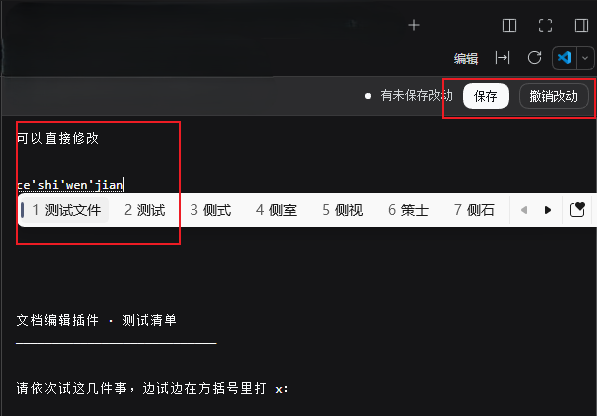
上图就是编辑中的样子。注意三点:
- 第二行的窄工具条是本插件加的:文件路径 · 状态点 · 保存 · 撤销改动
- 状态点是黄色、写着「有未保存改动」——还没写盘
- 图里正在用输入法打字(可以看到候选词条),说明中文输入法在编辑器里正常工作
工具条上一眼能看到状态:
| 指示 | 含义 |
|---|---|
| 绿点 · 已保存 | 缓冲区与磁盘一致 |
| 黄点 · 有未保存改动 | 还没写盘;此时关标签或关页面会拦一下 |
| 保存中… | 正在写盘 |
还有几个顺手的:
Tab缩进两格(不跳出编辑区)- 「撤销改动」把缓冲区退回磁盘上的版本
- 关标签/关页面时若有未保存改动会拦一下
.md默认仍然是渲染好的 Markdown,编辑器在下拉的「编辑源码」里——它不抢 Markdown 的默认位置
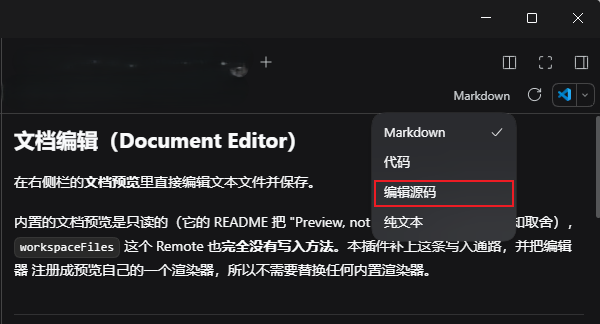
上图是 .md 文件的渲染器下拉:打勾的仍是 Markdown(默认),「编辑源码」是本插件新增的选项。
所以打开 .md 不会失去渲染视图,想改源码时从下拉里切过去即可。
各种情况下的表现
| 情况 | 表现 |
|---|---|
| 保存时文件已被别处改动 | 提示「文件已在磁盘上变化,未覆盖」,并给两个选择:用我的覆盖 / 放弃我的改动并重新载入。默认绝不覆盖 |
| 编辑期间磁盘上又变了 | 提示条出现「载入磁盘版本」,你的缓冲区不会被自动替换 |
| 文件被删掉了 | 保存返回 404 并说明,不会把文件重新创建出来 |
| 文件大过一页预览 | 保存停用并说明原因:预览是一次一页读的,回写会把后面的内容截断,所以宁可不让存 |
| 工作区外的文件 | 读得到,写会被沙箱拦下(除非该会话是 full-access) |
.docx / .xlsx / .pptx | 不适用——预览是转 PDF,浏览器里没有可编辑文档模型 |
效果
- 打开
.txt、代码、.json、.yaml等文本文件时,默认就是这个编辑器(原来的「纯文本」仍在下拉里可切回) - 打开
.md时仍然渲染 Markdown,下拉里多一项「编辑源码」 - 编辑器上方一条窄工具条:文件路径、保存状态、保存、撤销改动
- Ctrl+S 保存;有未保存改动时关页面会拦一下
- 冲突保护:保存时带上打开那一刻的文件版本,磁盘上变了就返回 409 提示,不会静默覆盖
- 行尾保留:CRLF 文件存回去仍是 CRLF,并补回结尾换行 —— 未改动的缓冲区保存后磁盘内容逐字节不变
安装
插件由 agent 安装(plugin_manager 是 agent 工具,用户不直接调用)。把这条规格发给你的 DSH agent:
plugin_manager { action: "install_bundle", target: "github:hh719509125/dsh-preview-editor" }
github:<owner>/<repo> 是 pnpm 的 git 规格,不需要发布到 npm,也不需要手动克隆。安装后会写进 profile 的 package.json 和 dsh.profile.bundles 并热应用。
锁定版本:上面这条跟踪 main。要钉住版本,把 ref 接在 # 后面:
github:hh719509125/dsh-preview-editor#v1.0.0          # 钉到某个 release
github:hh719509125/dsh-preview-editor#<完整 40 位 SHA>   # 钉到确切提交
实测注意:必须用完整的 40 位 SHA,短 SHA 解析不了(
git ls-remote不返回缩写)。
- 权限:
plugin_manager需要danger-full-access或当次批准。装进来的 Host 代码在工作区沙箱之外、以你的用户身份在本进程内执行,装之前请先读一遍index.js。 - 刷新页面:安装是热应用的,但浏览器侧需要刷新一次才能加载新的 client bundle。
想离线或改代码时,克隆后按绝对路径安装:
git clone https://github.com/hh719509125/dsh-preview-editor.git
plugin_manager { action: "install_bundle", target: "<克隆路径>" }
⚠️ 路径装法下 profile 只记录路径、不复制文件,装好之后不要移动或删除那个目录。
兼容性
为 DeepSeek Harness 0.2.0-rc.2 开发和验证。依赖两处 DSH 内部约定:Connection 的 /api 精确 Fetch 路由,以及预览的 documentPreviews 渲染器注册表。DSH 仍在 rc 阶段,这些不承诺跨版本稳定;装完看不到「编辑」渲染器就先确认 DSH 版本。
配置
都在 cordis.patch.yml 的 document-editor 那一行:
| 字段 | 默认 | 说明 |
|---|---|---|
extensions | 65 个后缀 | 哪些后缀默认进编辑器。刻意不含 md/html/svg/csv/图片/PDF —— 它们各自有更好用的内置渲染器 |
markdown | true | 是否为 .md 额外提供「编辑源码」渲染器(不改变 Markdown 仍是默认这一事实) |
maxBytes | 8388608 | 单次保存的 UTF-8 字节上限,超过返回 413 |
Host 会把这份配置注入页面(__DSH_DOC_EDITOR_CONFIG__),改完刷新页面生效。
工作原理
写入不是走 Remote——@deepseek-ai/dsh-api-remotes 把 Client 的 ctx.remote 命名空间
固定在构建期,插件加不了新命名空间。所以插件改为在 Connection 的 /api 桥上认领一条
exact Fetch 路由:
ctx.connection.fetch.register({ path: '/api/dsh-doc-editor', methods: ['POST'], ... })
Connection 自己持有 /api 前缀路由,先跑信任闸(loopback/Origin,失败 403)和浏览器
session cookie 鉴权(失败 401),再交给 shared fetch handler;handler 先查 exact 路由表。
所以这条路由天然带着内置鉴权,插件一行信任检查都不用写。
写入落到 ctx.fs.writeText,并带上该 Session 的 standing sandbox policy——用和
dsh-tool-fs 完全一样的方式解析,所以就地保存受的约束和 agent 自己的 write 工具一致,
不会成为绕过文件沙箱的口子。
保存前会 stat 一次:只保存已存在的文件。目标不见了返回 404,而不是被
create-or-overwrite 语义重新创建出来。
边界
| 情况 | 行为 |
|---|---|
| 工作区内的文本文件 | ✅ 正常 |
| 工作区外的文件 | 读得到,写被沙箱拦(除非该 Session 是 full-access) |
.docx / .xlsx / .pptx | ❌ 预览是转 PDF,浏览器里没有可编辑文档模型。要编辑得在 Host 用 python-docx/openpyxl 做结构化写回 |
| 单页读不完的大文件 | ⚠️ 保存停用并给出说明。text-pages 是一次一页读的,回写会把后面的内容截断,所以宁可不让存 |
开发
插件包里的 cordis.patch.yml 刻意不含任何本机路径:bundle patch 会应用到每个安装它的 profile,一条绝对路径会跟着跑到别人机器上。热重载要写到安装方的 profile 层(<DSH_HOME>/profiles/<profile>/cordis.patch.yml,优先级高于所有 bundle 层):
- id: hmr
  name: '@deepseek-ai/dsh-hmr'
  config:
    root: ['.', '<本插件的绝对路径>']
配好后 index.js(Host 半边)改完不重启就生效;client.js(Client 半边)属于浏览器侧,改完刷新页面即可。
日常用 cordis.patch.yml 里的 extensions / markdown / maxBytes 就够了,不必改代码。
改动怎么验。 写入通路必须带鉴权地打真实路由,而 DSH 的 browser-session cookie 签名是
dsh-client-connection 的内部实现、并未承诺稳定,所以这里不附带测试。开发时用的是本机探针,
覆盖下面这些行为:
| 类别 | 覆盖 |
|---|---|
| 鉴权 | 带会话 cookie → 200;无 cookie → 401 |
| 写入 | 内容正确落盘;返回新 version |
| 行尾 | CRLF 文件存回仍是 CRLF 且补回结尾换行;LF 文件保持 LF |
| 幂等 | 未改动缓冲区保存后磁盘内容逐字节不变 |
| 冲突 | 过期 version → 409 FS_STALE_VERSION,且文件原封不动 |
| 缺失目标 | → 404,且不会被重新创建 |
| 坏请求 | 请求体不是合法 JSON/对象 → 400 |
| 投递 | 页面 boot 载荷列出 client bundle,且该 bundle 能构建、内容含渲染器注册 |
卸载
plugin_manager { action: "remove_bundle", target: "@local/dsh-plugin-document-editor" }
Comments
Loading…
Similar plugins
by AKS1st
DSH 生态中最好的文本编辑插件:撤销重做、Ctrl+S 保存、未保存确认、二进制检测、悬浮窗几何记忆,dock-files 的默认文本查看器;依赖 dock 与 dock-files | The best text editor for DSH: undo/redo, Ctrl+S save, unsaved-change confirmation, binary detection, wind
★ 3
↓ 309/wk
MIT
JavaScript
Sep 11, 2026
dsh plugin --profile web add dock-editorby zhangjiabo522
DeepSeek Harness 文档工具插件:read/create/edit PDF/DOCX/XLSX/PPTX/CSV/Markdown(read_document、create_document、edit_document)
★ 0
MIT
TypeScript
Aug 15, 2026
dsh plugin --profile web add @deepseek-ai/dsh-tool-docby xusuyang030218
DSH (DeepSeek Harness) file preview & editor plugin: in-browser workspace file tree, multi-format preview, online editing, version history, search. DSH 文件预览插件。
★ 0
MIT
JavaScript
Aug 24, 2026
dsh plugin --profile web add dsh-preview-uiby Yazzyk
DeepSeek Harness (dsh) 插件:在 Web GUI 里手动点选文件或目录,屏蔽 agent 对它们的读取、搜索、写入与编辑。A dsh plugin that denies an agent read/search/write/edit access to chosen files and directories, picked from the plugin's own We
★ 0
MIT
JavaScript
Sep 19, 2026
dsh plugin --profile web add dsh-file-shieldby rong-coder
dsh plugin for DeepSeek Harness: complete Office document tools for the agent (create/read/edit .docx/.xlsx/.pptx via OfficeCLI) plus high-fidelity document preview in the dsh web sidebar through dsh-
★ 6
MIT
TypeScript
Aug 17, 2026
dsh plugin --profile web add dsh-office-toolby jh1016248
DSH(DeepSeek Harness)插件:会话标题栏一键导出当前会话 —— 「保存 MD」下载纯净 Markdown,「保存 HTML」下载带左侧目录、表格与代码块渲染的网页。自动过滤模型思考过程与工具调用记录,只保留用户与助手的正文,适合归档、分享与撰写报告。安装:dsh plugin --profile web add dsh-save-session
★ 0
↓ 690/wk
MIT
JavaScript
Sep 11, 2026
dsh plugin --profile web add dsh-save-session